
Storage
Feature Overview
File Storage is the enterprise-grade object storage service provided by Agentbase for unstructured and multimodal data, offering chunked upload, fine-grained access control, real-time image transformations, and content moderation for uploaded content. In the project 企业智能客服与知识中台 (Project ID: enterprise-ai-hub-210), Storage is not only the infrastructure for business applications to store user attachments, support ticket screenshots, and audio/video assets, but also the underlying file carrier for knowledge base (Knowledge Base) document parsing and multimodal agent memory (Multimodal Memory).
In the SIT demo environment enterprise-ai-hub-210, the project has two core storage buckets configured and running:
kb_enterprise_docs(enterprise knowledge base raw document bucket): carries the 4 core enterprise documents (Agentbase企业架构白皮书.md,智能客服SOP标准作业手册.md,OceanBase分布式事务与向量索引排障指南.md,AI网关模型路由与限流计费规范.md) uploaded to the knowledge basekb_enterprise_support(企业智能客服与技术支持知识库), withzstdefficient compression, extension allowlist, and file-level security controls enabled.agent_multimedia_bucket(agent multimodal media and support ticket attachment bucket): carries the architecture error screenshots and voice messages uploaded by customer Zhang Wei (user_zhangwei_001) when submitting a support ticket, as well as multimodal files processed by theqwen-vl-maxvision model, with real-time image transformations preview, client-side anti-enumeration protection (Client file listing = false), and Fail-Closed content moderation for uploaded images enabled.
Core Concepts and Architecture
Agentbase Storage adopts a complete architecture of "bucket policy isolation → chunked upload and security pipeline (extension/size validation, antivirus, encryption, compression, content moderation) → dual-layer authorization gateway (Bucket Permissions + File Security + File Tokens + Client File Listing Gate) → multimodal and knowledge base integration". The diagram below shows the full path of a file from being uploaded into a bucket to being securely accessed by end users or AI modules:
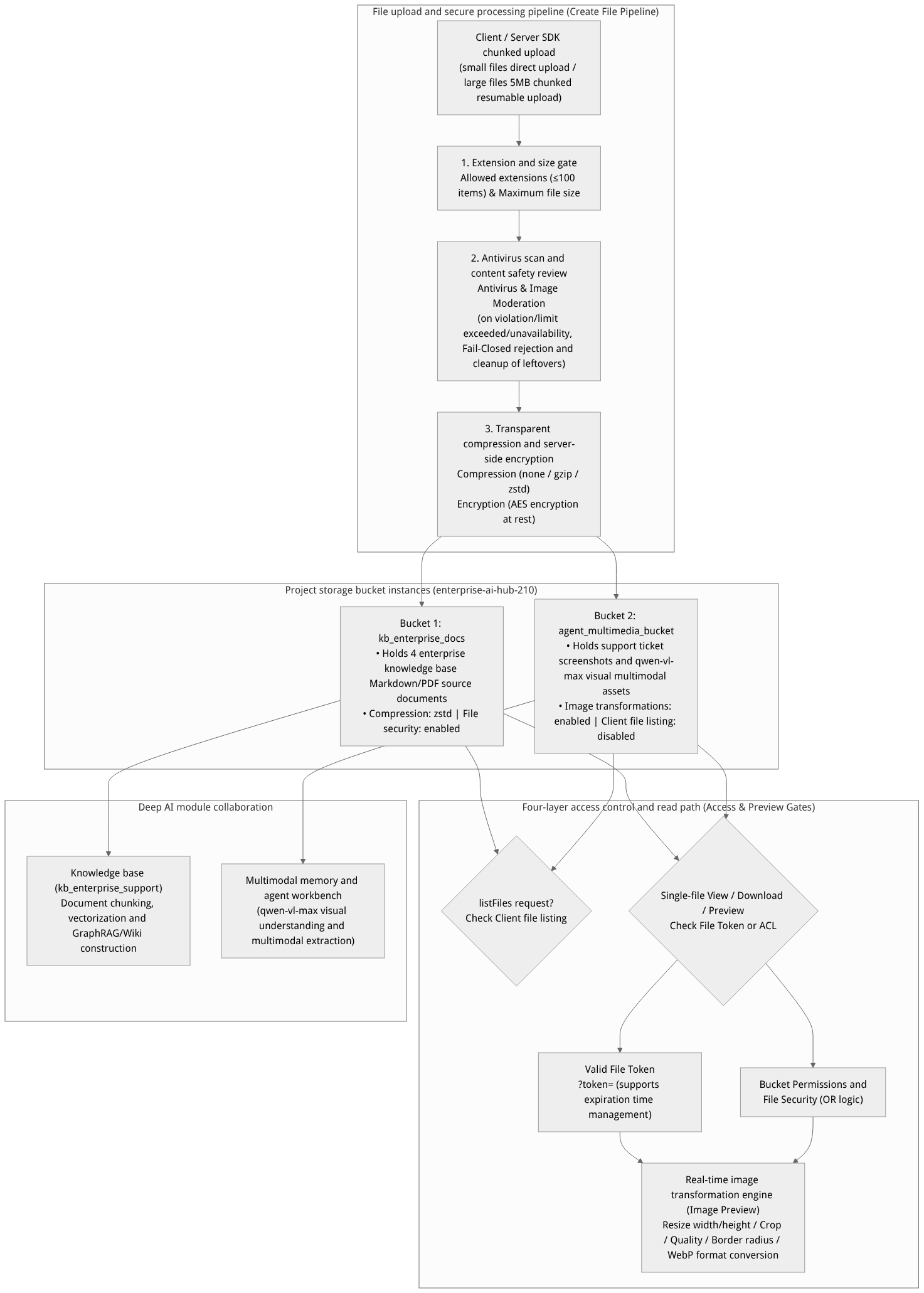
Flow diagram, not a runtime screenshot; read the relationships between steps or states along the arrows.
View the flow diagram in full size
Core Concepts and Bucket Attribute Descriptions
| Core concept | Attribute names and default values | Architectural semantics and production behavior description |
|---|---|---|
| Bucket | kb_enterprise_docs, agent_multimedia_bucket | The top-level logical container for files and the boundary of security policies. Each Bucket is independently configured with enable/disable status (enabled), permission list, size limit, allowed extensions, compression algorithm, encryption, antivirus, and image moderation policies. |
| File security | fileSecurity (Default: Off) | • When off: only Bucket Permissions take effect, and permission settings on individual files are ignored. • When on: bucket-level and file-level permissions are evaluated with logical OR — a user can access the file as long as they satisfy the bucket permissions or one of the file-level permissions on that specific file. |
| Client file listing | clientFileListing (Default: On) | Fully decouples “listing the complete file inventory of a bucket (listFiles)” from “accessing an individual file by a known file ID / URL”:• When set to off ( false): any listFiles request made by an unauthenticated, anonymous, or ordinary end-user Session/JWT returns 401 user_unauthorized, completely preventing clients from enumerating all files in the bucket; however, file uploads and access to public or authorized images via known links/tokens are unaffected, and the Server SDK with an API Key can still list files normally. |
| Chunked Upload | Pending Status → Completion | When uploading large files (over 5 MB), the SDK automatically splits the file into chunks and uploads them sequentially with the Content-Range header, supporting resumable uploads; before all chunks are fully merged, the file displays an Pending badge in the list and its details are inaccessible. |
| File Tokens | ?token=<SECRET> (signed JWT) | Without opening bucket-level/file-level public permissions, issue login-free shareable access links with expiration times (such as 7 Days, 30 days, Never, or a custom date) for specific private files. Once a token is deleted or its expiration time is reached, the corresponding link becomes invalid immediately. |
| Storage mode compatibility | Shared V2 & JsonTable | Configured bucket metadata and file directories fully support both Shared V2 and JsonTable project storage modes, and automatically migrate all attributes losslessly (including clientFileListing) when switching modes in ProjectTableModeConversion. |
Roles, Entry Points, and Relationships
Console Entry and Routes
Main navigation path: Log in to the Agentbase Console → enter the project
企业智能客服与知识中台(enterprise-ai-hub-210) → click Data group in the left sidebar, then Storage.Route addresses:
Bucket list and top-level usage page:
/console/project-{region}-{project}/storage(with two top-level tabs: Buckets and Usage).Individual bucket detail page:
/console/project-{region}-{project}/storage/bucket-{bucketId}(with four sub-tabs: Files, Usage, Moderation, Settings).Standalone file upload wizard page:
/console/project-{region}-{project}/storage/bucket-{bucketId}/createIndividual file detail and token management page:
/console/project-{region}-{project}/storage/bucket-{bucketId}/file-{fileId}
Operation permission gates:
Managing buckets in the Console (create/modify/delete buckets) requires organization roles with
buckets.read/buckets.writepermissions (owner,admin,developer,editor; without write permission, the Settings tab on the bucket detail page is automatically hidden).Managing files within a bucket via the Console or Server SDK requires
files.read/files.writepermissions.
Relationship with Knowledge Base and Multimodal Memory
Knowledge base document foundation: When uploading source documents such as
Agentbase企业架构白皮书.mdand智能客服SOP标准作业手册.mdtokb_enterprise_supportin knowledge base document management, the underlying layer directly reuses the project Storage bucket for raw file persistence, antivirus scanning, and encryption at rest, after which the knowledge base parsing pipeline asynchronously reads them and builds the vector index, GraphRAG knowledge graph, and Wiki pages.Multimodal Memory and vision model integration: When an agent needs to call the
qwen-vl-maxvision model to analyze user-uploaded architecture diagrams or error screenshots, the frontend first securely uploads the image toagent_multimedia_bucket; after it passes the built-in image content moderation, it is handled by Multimodal Memory and the model gateway via the file access URL or File Token.Controlled access from Cloud Functions: When accessing Storage inside the Cloud Functions runtime, the project context and function execution identity are inherited automatically, allowing secure read/write access to files in protected buckets.
Feature Details and Operation Guide
1. Create and view buckets
Go to the project's Storage → Buckets tab. The page displays all buckets created in the current project (such as kb_enterprise_docs and agent_multimedia_bucket):
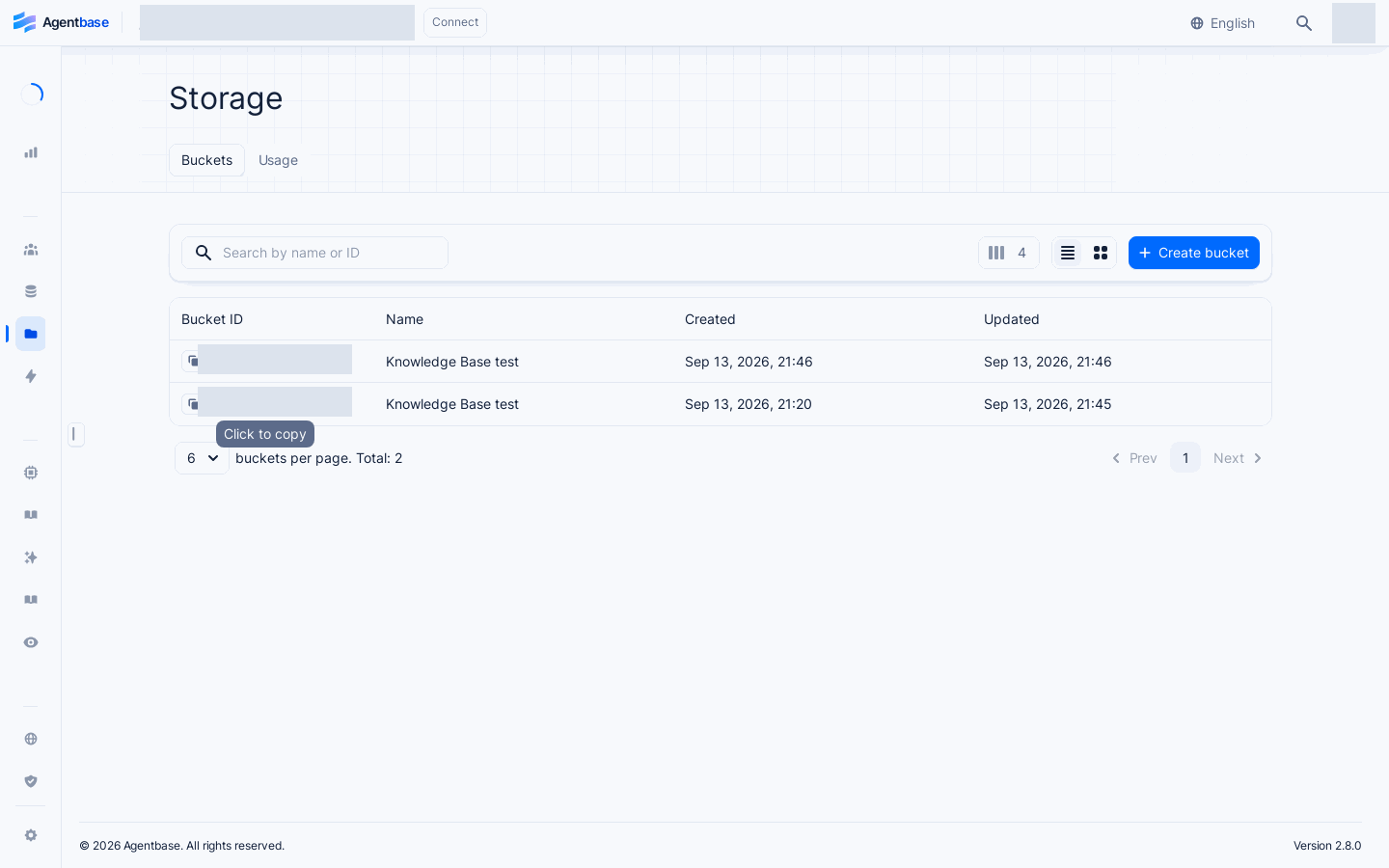
Interface reference: reuses previously registered historical screenshots; demo data may differ from the current project; no new screenshots were taken this time.
Steps to create a bucket
In the top-right corner of the Storage → Buckets tab, click the Create bucket button (if the number of buckets has reached the current plan's limit, the button is automatically disabled).
Fill in the two basic identifier fields in the dialog:
Name (required): the bucket's business display name, up to 128 characters (for example:
企业知识库原始文档存储桶or智能体多模态媒体与工单附件桶).Bucket ID (optional): click the Bucket ID label to expand a custom input box, and enter something like
kb_enterprise_docsoragent_multimedia_bucket(onlya-z,A-Z,0-9,.,-,_are allowed, up to 36 characters; leave blank to auto-generate a unique ID).
Click Create to finish creation; the page automatically navigates to the bucket's detail page. The server-side default security baseline for a newly created bucket is: Enabled = on, File security = off, Permissions = empty (denying all client access by default), Compression = none, Encryption = on, Antivirus = on, Client file listing = on.
2. Full explanation of all Bucket Settings parameters
Go to the bucket detail page and switch to the Settings tab, where administrators can adjust the bucket's access control, compression/encryption, and anti-enumeration policies card by card:
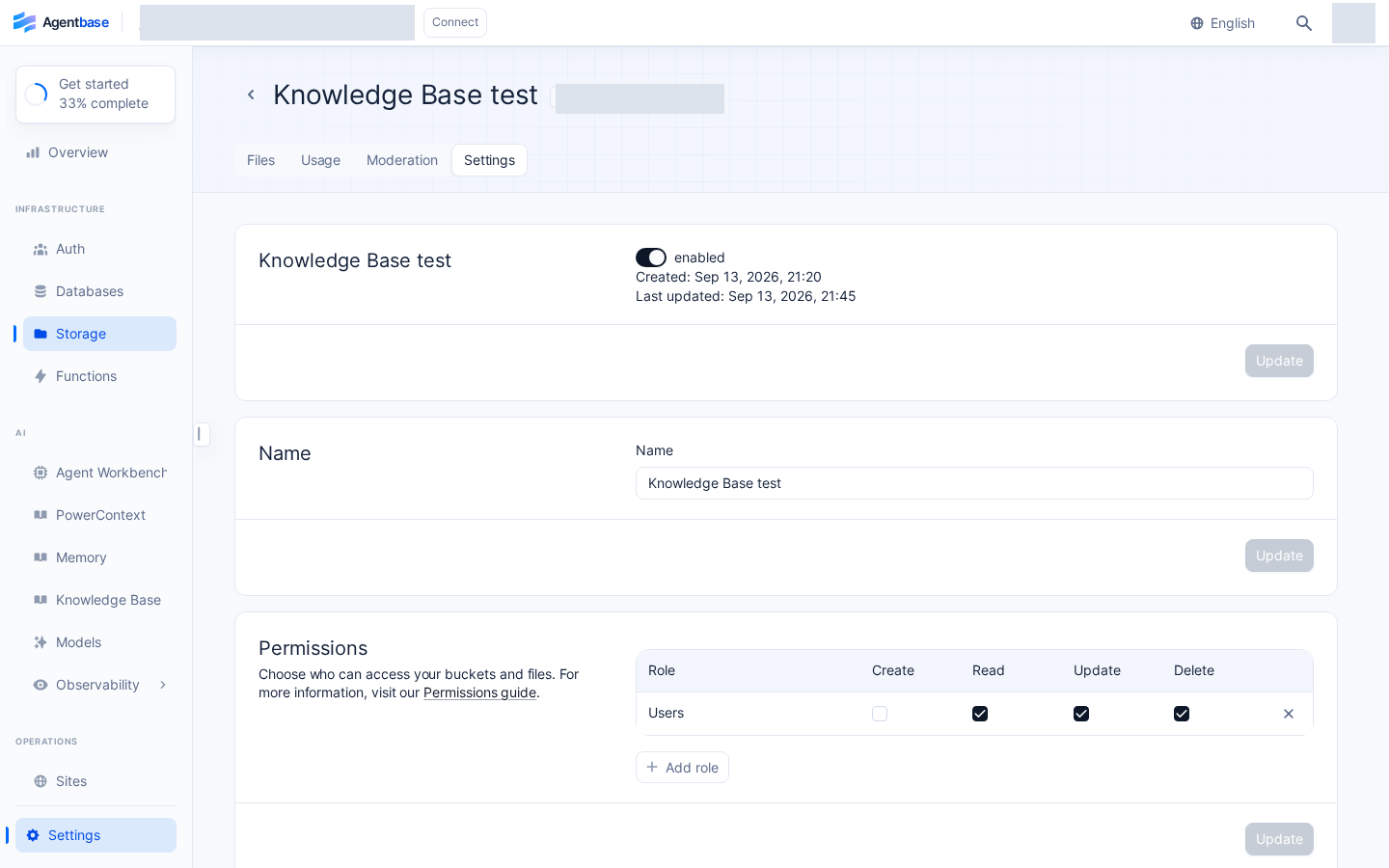
Interface reference: reuses previously registered historical screenshots; demo data may differ from the current project; no new screenshots were taken this time.
The table below details the parameter rules, technical boundaries, and recommended configurations in the two example buckets enterprise-ai-hub-210 for every configuration card on the Settings page:
| Settings card name | Configuration options and values | kb_enterprise_docs Recommended configuration | agent_multimedia_bucket Recommended configuration | Technical rules and boundary notes |
|---|---|---|---|---|
| Enabled (enable status) | Boolean toggle (On / Off) | On | On | When off, all end users (Client SDK) cannot access files in the bucket; but the Server SDK with an API Key can still access them normally, and the underlying files are never lost. |
| Name (bucket name) | String (1–128 characters) | 企业知识库原始文档存储桶 | 智能体多模态媒体与工单附件桶 | Changing the bucket display name does not affect Bucket ID or any previously generated File URLs. |
| Permissions (bucket-level permissions) | Add Create / Read / Update / Delete to Roles | Read: Role.team('team_kb_governance')Write: Role.team('team_kb_governance', 'reviewer') | Create: Role.users('verified')Read: Role.team('team_support_ops') | Supports selecting Any, Guests, Users, specifying User, Team + Role, Label, or writing custom role expressions in the editor. |
| File security | Boolean toggle (On / Off) | On | On | When off: only bucket-level permissions take effect, and individual file permissions are ignored. When on: access is granted by satisfying the bucket permissions or one of the individual file permissions. Toggling the switch takes effect immediately for authentication on all files in the bucket! |
| Security settings (encryption and antivirus) | Encryption (encryption at rest) Antivirus (ClamAV virus scanning) | Both On | Both On | Virus scanning and encryption at rest are executed automatically before files are written to disk; to preserve throughput, very large chunked files (exceeding the internal large-file threshold) automatically skip full in-memory encryption and scanning. |
| Compression (compression algorithm) | Dropdown: None / Gzip / Zstd | Zstd (high compression ratio, extremely fast decompression) | None (images/audio/video are already compressed) | Enabling Zstd or Gzip is recommended for Markdown, JSON, text, and uncompressed documents; large files automatically skip real-time compression. |
| Image transformations | Boolean toggle (On / Off) | Off (document-only buckets need no image transformations) | On | When on, clients may use the getFilePreview endpoint to perform real-time resizing, cropping, rounded corners, background color, and format conversion on images in the bucket. |
| Maximum file size (per-file size limit) | Number + unit (Bytes / KB / MB / GB, converted in 1000 base) | 50 MB | 20 MB | Note: this value limits the maximum size of a single uploaded file (constrained by the plan's fileSize hard cap), not the total storage capacity quota of the entire project. |
| Allowed file extensions (extension allowlist) | List of extension tags (up to 100 items, without leading dots) | md, pdf, docx, txt, html, csv | jpg, png, webp, gif, mp4, mp3 | The interface provides jpg, png, svg, gif, html, pdf, mp4 quick tags; leaving it empty allows uploading files with any extension. |
| Client file listing | Boolean toggle (default: On) | On (for authorized knowledge governance teams to browse) | Off (prevents clients from enumerating other users' attachments) | When set to off, calls to listFiles from ordinary clients and anonymous requests immediately return 401 user_unauthorized; only the admin side with an API Key can list files, while single file uploads and link access are unaffected. |
| Delete bucket | Red Delete button in the bottom danger zone | Only when decommissioning | Only when decommissioning | Permanent and irreversible: after confirming by entering the bucket name, the bucket and all its internal files and tokens are completely deleted. |
3. Bucket-level image content moderation and Fail-Closed protection
In buckets open to external user uploads (such as agent_multimedia_bucket), never allow unreviewed images to be written to disk directly and served via public links. Switch to the Moderation tab in the bucket details:
Enable the bucket-level image content moderation switch and configure risk interception policies (for more global moderation rules, see Content Moderation (Moderation)).
Fail-Closed strict boundary (upload rejected means cleanup):
When a user uploads an image to a bucket with Moderation enabled, the system synchronously calls the moderation service in the upload path.
Once an image is judged as violating policy, exceeds the moderation size limit, has corrupted image bytes on read, or the backend moderation service is unavailable, the upload request is rejected immediately, and the server automatically cleans up the temporary file chunks already written to disk; no unreviewed, unapproved image files are ever left behind in the bucket.
Privacy compliance auditing: the moderation audit log records only a safe filename preview and the verdict, never the raw image byte stream or Base64-encoded content.
4. Upload file (Create file), chunked resumable upload, and image conversion preview
(1) Steps to upload a file in the Console
Go to the Files tab of the target bucket (such as
kb_enterprise_docs), click Create file in the upper-right corner to enter the upload wizard page (/storage/bucket-{bucketId}/create).Select the file and specify a File ID (Data section):
Drag and drop or click to select a local file (such as
OceanBase分布式事务与向量索引排障指南.md). The client pre-validates locally whether the file extension matches the bucket's Allowed file extensions whitelist; however, the maximum file size is enforced by the server, and files exceeding the limit are rejected by the server at upload time.Optionally expand File ID to define a custom unique file identifier (or leave it blank to auto-generate).
Configure per-file permissions (Permissions section):
If the current bucket has File security enabled, this section shows
"File security enabled", and you can add access roles for this file individually (such asRole.user('user_zhangwei_001')orRole.team('team_support_ops')).If it is not enabled, this section shows
"File security disabled"; you must first enable it in the bucket's Settings before per-file permissions can be used.
After clicking create, the page returns to the file list and shows
"File upload in progress"(before a large file's chunked upload completes, aPendingbadge is displayed; closing the browser tab at this point triggers an anti-loss interception confirmation).
(2) Uploading files via SDK and getting real-time image conversion previews (getFilePreview)
The following example shows how to use agentbase-web-sdk@2.10.0 to upload a support ticket screenshot to agent_multimedia_bucket and generate a thumbnail preview URL with the specified width, height, and WebP format:
import { Client, Storage, ID, Permission, Role, ImageGravity, ImageFormat } from 'agentbase-web-sdk'; // Pin version @2.10.0

const client = new Client()
    .setEndpoint('https://appbuild.oceanbase.com/v1')
    .setProject('enterprise-ai-hub-210');

const storage = new Storage(client);

// 1. Upload the support ticket error screenshot (when the file is > 5MB the SDK automatically switches to chunked upload and reports progress)
const uploadedFile = await storage.createFile(
    'agent_multimedia_bucket',
    ID.unique(),
    document.getElementById('ticketScreenshotInput').files[0],
    [
        // The submitting customer Zhang Wei himself and the VIP technical support team can read
        Permission.read(Role.user('user_zhangwei_001')),
        Permission.read(Role.team('team_support_ops')),
        Permission.delete(Role.user('user_zhangwei_001'))
    ],
    (progress) => {
        console.log(`上传进度: ${progress.progress}% (${progress.chunksUploaded}/${progress.chunksTotal} 块)`);
    }
);

// 2. Generate a real-time image transformation preview link (requires the bucket to have Image transformations enabled)
// Center-crop and scale the original image to 800x600 at quality 85%, automatically converting to the high-compression webp format
const previewUrl = storage.getFilePreview(
    'agent_multimedia_bucket',
    uploadedFile.$id,
    800,                    // width (pixels)
    600,                    // height (height in pixels)
    ImageGravity.Center,    // gravity (crop focal point)
    85,                     // quality (1-100 compression quality)
    0,                      // borderWidth
    '',                     // borderColor
    8,                      // borderRadius (corner radius in pixels)
    1,                      // opacity
    0,                      // rotation
    'FFFFFF',               // background
    ImageFormat.Webp        // output (output format converted to webp)
);
5. File details and login-free secure sharing with File Tokens
Click any file in the file list to enter its detail page (/storage/bucket-{bucketId}/file-{fileId}), where you can view the file's thumbnail preview, MIME type, size, and creation time, and copy the File URL, click Download to download the original file, or modify per-file permissions (note: in the current version, the Console does not support renaming uploaded files; the filename is fixed at upload time).
When you need to temporarily share a private file (such as a support ticket diagnostic report or an architecture whitepaper PDF) with an external partner who has no project account, or provide it for an external LLM API to fetch, you can use File tokens:
Find the File tokens card at the bottom of the file detail page (note:
"Use tokens to provide public access to the file."), and click Create token.Set the expiration time (Expiration): choose a preset option Never (never expires) / 7 Days / 30 days / 90 days / 1 Year, or select Custom Date to specify an exact expiry date (the earliest is the next day).
Copy the access link with the signed token (Copy URL):
In the token list row, click Copy URL; the popup provides three dedicated tabs: Preview (image conversion preview link), View (open inline in browser link), and Download (trigger attachment download link), with
...&token={secret}automatically appended to the end of the URL.Any visitor holding the complete URL can access the file normally, even when not logged in and lacking bucket/file ACL permissions, as long as the token has not expired and has not been deleted.
Safe keeping and instant revocation boundary:
The token's
secretis a signed JWT; members with Console read permission can click to copy it again from the list, so treat URLs containingtoken=as shared secrets and keep them safe; for external temporary sharing, strongly set an explicit expiration time (such as7 Days) and avoid usingNever.Once a link leaks or sharing ends, simply click Delete to the right of the token in the File tokens list (or call Edit expiry to set it as expired), and the corresponding share link becomes invalid immediately. Note: merely toggling the bucket's
File securityswitch does not invalidate already-issued File Tokens; revoking access requires directly deleting the token.
FAQ and Troubleshooting
Q1: I enabled File security on bucket agent_multimedia_bucket and configured per-file Read permission for the customer on user_zhangwei_001 when uploading images. Why did the customer suddenly lose access to their images after an administrator later turned off the bucket's File security?
Root cause analysis: This is the core authorization semantics of the File security switch:
When
File securityis enabled, the system uses桶级权限 OR 文件级权限authorization, so the customer can access files using theRole.user('user_zhangwei_001')on individual files.Once the bucket's
File securityis switched to disabled, the system immediately ignores all per-file permissions within the bucket and strictly requires visitors to match the bucket-level permissions (Bucket Permissions). If the bucket-level Permissions only include the internal teamRole.team('team_support_ops')and do not include the customer role, the customer immediately loses access.
Solution: For buckets requiring per-file isolated authorization, always keep the bucket's Settings → File security in the enabled state.
Q2: How can I allow frontend users to upload support ticket attachments to a bucket and allow images to be displayed directly via known image links, while strictly forbidding any frontend user from calling listFiles to fetch the bucket's file list?
Solution: This is exactly the standard use case for Client file listing:
Go to the Settings tab of the target bucket (such as
agent_multimedia_bucket).In Permissions (or per-file permissions), normally configure the roles allowed to upload (
Create) and read (Read).Scroll down to the Client file listing card, turn off the "Allow client file listing" switch, and click Update to save.
After it is disabled, any frontend client (whether anonymous, a regular logged-in session, or a user JWT) calling
storage.listFiles('agent_multimedia_bucket')is directly blocked by the backend and receives401 user_unauthorized(leaking no filenames or total file count); meanwhile, frontend calls tocreateFilefor uploads, and access togetFileView/getFilePreviewvia knownfileIdwithin the<img>tag, work completely normally, and backend microservices callinglistFileswith a Server API Key are likewise unaffected.
Q3: Why do some large files of a dozen or more MB not show Gzip/Zstd compression or encryption at rest, or occasionally remain in the Pending state in the file list?
Root cause analysis:
Large-file streaming passthrough optimization: to avoid memory overflow (OOM) or high latency caused by caching very large byte streams in gateway and Worker memory, when an uploaded file exceeds the internal large-file streaming threshold, the system automatically skips full in-memory compression, encryption at rest, and antivirus scanning, and directly writes to disk via high-performance chunked streaming.
Reason for the
Pendingstate: large files use 5 MB chunked upload; if the client loses network connection mid-upload, closes the browser page, or one chunk is blocked by a network firewall, the server never receives the final merge chunk, so the file record remains in thePendingstate and its details are inaccessible. You can resume the upload by re-initiating with the originalfileIdfrom the client, or select thePendingrecord in the list and delete it directly for cleanup.
Related Documentation
Knowledge base document management: learn how documents uploaded to knowledge base
kb_enterprise_supportreuse Storage buckets and undergo parsing and chunking.Content Moderation (Moderation): configure violation detection policies and Fail-Closed interception rules for images uploaded to buckets.
Authentication Overview (Auth Overview): review the
Role.any(),Role.users(),Role.user(),Role.team()syntax used in bucket and per-file permissions.Cloud Functions (Functions): read and write Storage files in serverless functions on the server side combined with project context.
Core Concepts and Permission Model: an overall understanding of Agentbase's storage, authorization, and quota metering rules.