
Project Settings
Project Settings are located at the bottom of the left sidebar in the project Console (route prefix /console/project-{region}-{project}/settings) and centrally host project-level global governance and high-privilege infrastructure configuration: including the database column deletion toggle (Column deletion), project table storage mode conversion (shared tables / dedicated tables / Shared V2), client service reachability toggles (Services), Git VCS connections, project-level global environment variables (Global variables), custom API domains (Custom domains), event push hooks (Webhooks), custom email channels (SMTP), cross-platform data migration (Migrations), as well as cross-organization project transfer and permanent destruction.
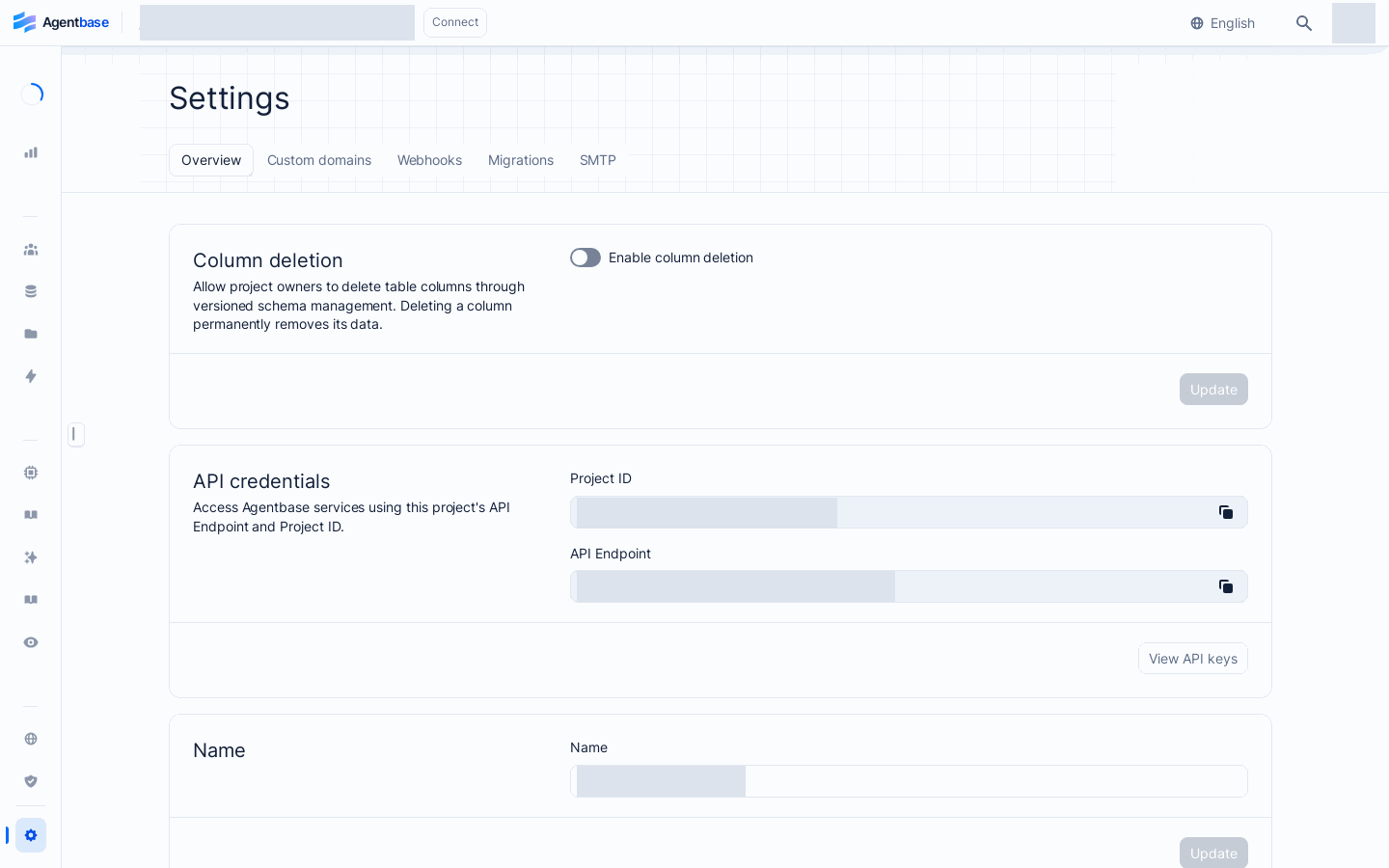
Interface reference: reuses previously registered historical screenshots; demo data may differ from the current project; no new screenshots were taken this time.
Feature Overview
Throughout the full lifecycle of an enterprise production project (e.g. 企业智能客服与知识中台, ID: enterprise-ai-hub-210), the Project Settings module provides architects and ops leads with six major governance capabilities:
Storage foundation and table structure protection: Control whether table columns may be physically deleted via versioned Schema (
Column deletion), and support online table mode conversion among shared tables, dedicated tables, and OceanBaseShared V2modes (except deep dedicated tables).Fine-grained trimming of the client API exposure surface (Services): Independently enable or disable reachability for client SDKs per service, unlock the default-disabled AI Gateway sidebar entry, and turning off a service never damages existing underlying data.
Global environment variables and build integration (Global Variables & Git): Centrally manage environment variables and encrypted Secrets injected into all cloud Functions and Sites under the project (supports
.envbulk import), and manage VCS repository installations such as the GitHub App.Custom domains and HTTPS certificate automation (Custom Domains): Bind an enterprise-owned domain to the project API (e.g.
api.support.enterprise.example.com), with SSL/TLS certificates automatically issued and renewed.Event-driven Webhooks and your own SMTP channel: Push internal events such as database row changes, user registrations, file uploads, and function executions to external business systems in real time (with HMAC signature and SSL certificate verification); configure your own enterprise SMTP server to take over platform verification and notification emails.
Data import/export and project ownership governance: Complete data migration via the wizard, smoothly transfer the project to another organization, or perform irreversible project destruction.
| Settings sub-tab name | Console route suffix | Core governance objects | Minimum required permission / role boundary |
|---|---|---|---|
| Overview | /settings | Column deletion toggle, name and labels, project table mode, client Services toggles, Git connection, Global variables, transfer organization, delete project | Regular items require projects.write (owner/admin/developer/editor); Column deletion is limited to organization owner and platform administrators |
| Custom domains | /settings/domains | Bind project-level custom API domains, DNS CNAME verification, and SSL certificate generation retries | projects.write / domain management permission |
| Webhooks | /settings/webhooks | Create event listeners, select trigger events, configure SSL/TLS verification and signing keys | projects.write / Webhooks write permission |
| Migrations | /settings/migrations | Cross-source data import and project data export wizards | projects.write |
| SMTP (custom mail service) | /settings/smtp | Enable and configure the enterprise's own SMTP sending server (TLS/SSL, port, account and password) | projects.write (cloud deployment is subject to paid plan restrictions) |
| Usage | /settings/usage | Aggregated view of project resource billing usage under cloud deployment | Readable by any project member |
Core Concepts and Architecture
Each configuration item in Project Settings directly acts on the data-plane gateway, the underlying OceanBase storage engine, the cloud function/site runtime sandbox, and the asynchronous event dispatcher. The diagram below shows the control flow of each Settings submodule within the system architecture:

Flow diagram, not a runtime screenshot; read the relationships between steps or states along the arrows.
View the flow diagram in full size
Project Table Mode (Table Mode) Selection and Conversion Rules Matrix
In the Settings → Overview project table mode card, the system clearly defines the capacity characteristics and conversion boundaries of the different table storage modes:
| Table mode type | Capacity mechanism description | Supports online conversion | Conversion prerequisites and AI capability association |
|---|---|---|---|
| Shared Tables | Multiple collections/tables share the underlying physical storage structure, suitable for lightweight prototype projects | Supports conversion to dedicated tables or Shared V2 | If the project contains collections with relationship (relationship) types, the system proactively blocks the conversion and explicitly prompts that the relationship collections must be handled first. |
Dedicated Tables / Shared V2 (enterprise standard) | High-performance table isolation and OceanBase Shared V2 architecture (e.g. enterprise-ai-hub-210) | Supports mutual conversion with shared tables | The AI Memory long-term memory service requires the project to run in Shared V2 mode; before conversion, you must select the target type and tag (the underlying target cluster is automatically assigned by round-robin according to project creation rules). |
| Deep Dedicated Tables (Deep Dedicated) | Extreme high-throughput single-table physical deep isolation mode | Does not support conversion (cannot be converted to other modes, and other modes cannot convert into it) | Only for special proprietary workloads whose mode is determined at creation and requires no change. |
Roles, Entry Points, and Relationships
1. Permissions and Risk Level Comparison of the Eight Governance Cards on the Overview Tab
Enter /console/project-default-enterprise-ai-hub-210/settings (as shown in Figure 1), where eight core governance cards are arranged from top to bottom. The permission thresholds and operational impact of each card are as follows:
| Card name | Operation permission requirement | Scope of effect | Risk level and irreversibility notes |
|---|---|---|---|
| Column deletion | Project organization admins Owner and platform administrators only | Database Schema version management | High risk: when enabled, physical columns of data tables can be deleted via Schema versions. Deleting a column permanently erases all historical data in that column. |
| Name / Labels | projects.write | Console display and project category filtering | Low risk: updates the project display name; project labels only allow alphanumeric characters. |
| Table mode | projects.write | The project's underlying OceanBase storage structure | Medium-high risk (heavy-load operation): during conversion, the card shows real-time progress; do not execute any other table structure changes concurrently; history can be viewed in Account → Table mode conversions. |
| Services (client service switches) | projects.write | API reachability and sidebar entries for client SDKs (Web / mobile) | Medium risk: disabling a service only blocks direct client access. Server-side API Key access is unaffected, and existing data is never deleted. Supports Enable all / Disable all (with a second confirmation). |
| Git (repository installation) | projects.write | Git build source for Functions and Sites | Low risk: connects or updates GitHub App installation authorization; installing or updating the connection itself does not automatically trigger a production redeployment. |
| Global variables | projects.write | Automatically injected into all Functions and Sites in the project | Medium risk: can be marked as Secret (after saving, the value is one-way masked and never shown again); if it conflicts with a same-named function-level variable, it is clearly flagged on the function variables page. |
| Change organization | Organization Owner | The top-level organizational container the project belongs to | Medium risk: migrates the entire current project to another organization owned by the current account. |
| Delete project | Organization Owner / high-privilege write roles | The entire project and all its subordinate resources | Extremely high risk (irreversible): permanently destroys project metadata, databases, storage buckets, knowledge bases, memories, and statistics; you must manually type the full project name to confirm. |
2. Complete List of Services Client Switches
In the Services card, you can control the client-facing switch state of the following services one by one:
Core and backend services:
Account,Avatars,Databases,TablesDB,Health,Functions,Locale,Messaging,Storage,Sites,Teams,Users,GraphQL.AI-native and knowledge services:
Memory(long-term memory),Knowledge Bases(knowledge base),AI Gateway(model gatewayllmGateway),统一 AI Gateway(aiGateway, off by default; once enabled, the “AI Gateway” entry appears in the left sidebar).
Feature Details and Operation Guide
1. Managing Project-Level Global Variables
When multiple cloud Functions or multiple Sites within a project need to share the same set of third-party service addresses, common configuration, or secrets (for example, an internal ERP API endpoint or a shared verification public key), you can manage them centrally in the Global variables card:
Go to the project's Settings → Overview and scroll down to the Global variables card.
Three ways to add and maintain variables:
Create one by one (Create variable): click the add button, then enter the variable key (
Key, up to 255 characters; uppercase letters with underscores are recommended, e.g.ENTERPRISE_ERP_BASE_URL) and the variable value (Value).Bulk import (Import .env): click the import button, then upload or paste key-value pair text in standard
.envformat to create or update multiple global variables at once.Online editor mode: review and adjust variables centrally in the editor view.
Enable Secret masking:
If a variable value is a sensitive credential (such as an internal system signing key), check the Secret checkbox when creating or editing it.
After checking and saving, the variable value is permanently displayed as a mask (
••••••) in the Console interface and API responses. Viewing it in plaintext again is not supported; it is only securely injected by the platform into the runtime environment variables when cloud Function and Site containers start.
2. Binding Custom API Domains (Custom Domains)
If corporate security compliance requires frontend applications not to request the platform's default domain directly, but to access Agentbase via the company's own branded domain (such as https://api-aihub.enterprise.example.com/v1):
Go to the project's Settings → Custom domains tab (path
/settings/domains) and click Add domain.Enter the full custom subdomain to bind, then click Next to view the DNS CNAME target provided by the system.
Go to your corporate DNS provider's console and add a corresponding CNAME record pointing to the target address.
Return to the Agentbase domain list to watch the status transitions:
During automatic certificate issuance, the status shows
Generating certificate.If
Certificate generation failedis displayed because DNS resolution has not yet taken effect, once DNS has taken effect you can click Retry in the row, or click View logs to view detailed ACME certificate validation logs.Once the certificate is issued successfully, the custom domain can be used as the SDK's
Endpointin production.
3. Creating and Configuring Event Push Webhooks
Webhooks allow Agentbase to proactively send HTTP POST callbacks to external corporate business systems when specific resource changes occur within a project (such as a new support ticket written to customer_tickets, a new user completing registration, or knowledge base document ingestion finishing):
Go to the project's Settings → Webhooks tab (path
/settings/webhooks) and click Create webhook.Fill in the core configuration items following the wizard:
| Configuration item | Required | Detailed description and production security advice |
|---|---|---|
| Name | Required | Identifies the business purpose of the webhook (e.g. 工单落库同步至企业微信群机器人). |
| POST URL (callback URL) | Required | The external server URL that receives event pushes. It must be reachable from the Agentbase instance over the public network / dedicated line for outbound traffic, and is subject to the platform's SSRF protection (127.0.0.1, private IPs, and cloud metadata addresses are forbidden). |
| Events (triggering events) | Required | Select the event expressions that trigger pushes (such as databases.*.tables.*.rows.create, users.*.create, etc.). |
| Certificate verification (SSL/TLS) | Strongly recommended to enable | SSL/TLS certificate verification is enabled by default in the Security section; if you turn it off because the test environment uses a self-signed certificate, the interface shows an explicit security risk warning. |
| HTTP Basic Auth (optional) | Optional | Optionally configure the HTTP Basic authentication username and password carried by callback requests. |
After creation, go to the webhook detail page and copy the system-generated Signature Key (can be regenerated at any time). In your external receiving service, be sure to use this signature key to verify the HMAC-SHA1/SHA256 signature of the
X-Appwrite-Webhook-Signaturerequest header to prevent forged callback requests.
4. Configuring a Corporate Custom Mail Server (Custom SMTP)
By default, the project uses the platform-level mail channel to send end-user (Auth) registration verification, Magic URL login, and password recovery emails. To send emails from your company's own branded mailbox:
Go to the project's Settings → SMTP tab (path
/settings/smtp) and turn on the Custom SMTP server switch.Fill in the sender and server connection parameters:
Sender name: for example
企业智能客服中心.Sender email and Reply to: for example
no-reply@enterprise.example.com.Server host and Server port: for example
smtp.enterprise.example.com, with port465(SSL) or587(TLS).Username / Password: SMTP authentication account and password (the password is stored encrypted and never shown again).
Secure protocol: choose
TLS,SSL, orNone(in production,TLSorSSLis strongly recommended).
After clicking Update to save, go to the project's Auth → Templates tab (see Email and SMS Templates) to further customize the title and body templates of various system emails.
FAQ and Troubleshooting
Q1: I accidentally clicked Disable all in Settings → Services and turned off all services. Will my database tickets and knowledge base documents be lost?
Cause and troubleshooting steps: No data will be lost at all, and backend services are unaffected. All switches in the Services card only control whether client access (i.e., requests made directly by browser Web SDKs and iOS/Android clients) is allowed through the gateway. Even if all client service switches are turned off:
The underlying OceanBase database, object storage buckets, knowledge base indexes, and long-term memory data remain intact.
All read/write requests made by backend microservices carrying the server-side
X-Appwrite-Key(Server API Key) continue to execute normally. Simply click Enable all in the Services card again, or turn on the corresponding toggles as needed, and frontend client access will be restored immediately.
Q2: Why does my webhook keep failing to deliver after being saved, or why is the URL rejected outright when I enter it?
Cause and troubleshooting steps:
URL rejected outright (SSRF protection): Agentbase enables strict outbound SSRF protection by default, strictly forbidding webhook URLs pointing to loopback (
localhost/127.0.0.1), private LAN IP ranges (10.0.0.0/8,172.16.0.0/12,192.168.0.0/16), or cloud provider metadata addresses (169.254.169.254). Please use a legitimate public domain or a corporate gateway domain connected via the platform network.Delivery timeout or TLS handshake failure: on the Webhook detail page, check whether the target HTTPS domain's certificate has expired or is missing an intermediate certificate chain; if a self-signed certificate is truly required in a test environment, you must explicitly disable Certificate verification (SSL/TLS) in the Webhook's Security settings (never disable it in production).
Q3: Why does converting the project table mode from “shared tables” to “dedicated tables” fail and get blocked?
Cause and troubleshooting steps: Please check the following two hard constraints:
Check whether
relationship-associated collections exist: when the project database contains collections withrelationship-type attributes, the system's conversion prerequisite check actively blocks the conversion and shows an explicit message. You must remove therelationshipattributes or the related collections before starting the conversion.Check whether the current table is a “deep dedicated table”: shared tables and dedicated tables can be converted into each other, but deep dedicated tables (Deep Dedicated) architecturally cannot be converted to any other table mode. The historical status and detailed errors of conversion tasks can be reviewed in the top navigation under the Account → Table mode conversions tab.