
Backup and Restoration
Feature Overview
Database backup and restoration (Backups & Restoration) is a data-level disaster recovery and accidental-deletion protection capability that Agentbase provides for production-grade business databases (such as 企业智能客服与知识中台 enterprise-ai-hub-210 under project 企业智能客服业务库 enterprise_biz_db). During day-to-day enterprise operations, bulk data migration, automated agent support ticket handling, or major version upgrades, table-structure-level Schema version rollback alone cannot restore business rows that were accidentally deleted or incorrectly overwritten (for example, an accidental operation emptied the customer_tickets customer support ticket table). Via the Databases → select database → Backups tab, administrators can create permanently retained manual backup snapshots (Manual Backups) with one click, flexibly configure scheduled backup policies (Automated Backup Policies) that run automatically hourly/daily/weekly/monthly, and when needed restore any completed (Complete) backup to a brand-new standalone database (non-destructive side-by-side verification) or directly overwrite the current database (in-place rollback).
Agentbase's backup engine works in deep coordination with the underlying OceanBase storage, fully capturing the complete logical table structure (Tables, Columns, Indexes, Comments) and full row data (Rows and row-level $permissions) of the target database at the backup point in time, ensuring cross-table data consistency and immediate usability after restoration.
Core Concepts and Architecture
Agentbase's database backup system consists of four core modules: “backup triggers (manual trigger vs scheduled policy dispatch) → asynchronous snapshot build state machine → lifecycle retention cleanup (Retention GC) → dual-mode restoration engine (new-database side-by-side restore vs in-place overwrite restore)”. The diagram below shows the complete architecture flow of database backups from creation, scheduled policy configuration, to executing data restoration:
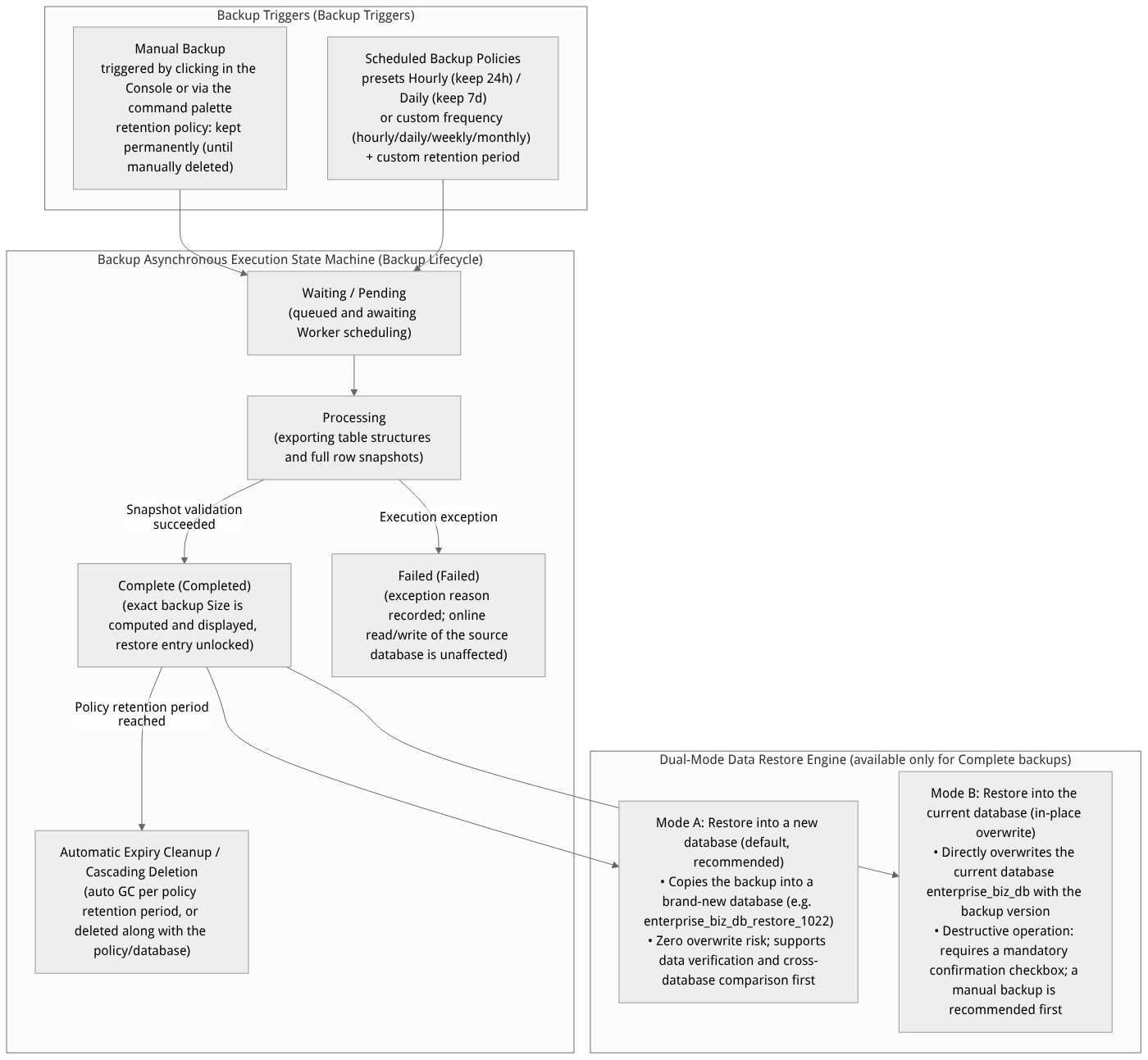
Flow diagram, not a runtime screenshot; read the relationships between steps or states along the arrows.
View the flow diagram in full size
Core Concepts and Status Reference
| Core concept / status | Technical definition and lifecycle rules |
|---|---|
| Plan and deployment gating (Availability Gate) | Database backup is a Cloud paid-plan exclusive capability, gated jointly by “whether the environment is Cloud + whether the current organization plan includes backup benefits (backupsEnabled)”: • Self-hosted deployments: The Backups tab shows a locked view and feature description; backup operation entry points are not available. • Cloud without an eligible plan: A plan upgrade guide is displayed, and the create-database dialog explicitly notes that “this database will not be backed up”. |
| Manual backup (Manual Backup) | A one-off snapshot proactively triggered by an administrator before major changes. The backup name is generated automatically by the system based on the creation timestamp (custom naming is not supported); by default it is retained permanently (Never expires) unless the administrator manually deletes it or deletes the database it belongs to. |
| Scheduled backup policy (Backup Policy) | Defines the execution frequency of automated periodic backups (Hourly / Daily / Weekly / Monthly), the UTC execution time point, and the snapshot retention period (Retention Period). The total number of policies per database is constrained by the backupPolicies quota of the current plan. |
| Backup status enumeration (Backup Status) | • Waiting / Pending: The backup task has been submitted and is queued awaiting execution.• Processing: A background Worker is generating a consistent snapshot (a floating window in the bottom-right corner shows real-time progress).• Complete: The backup is complete and shows its size (Size); only backups with status Complete expose the “Restore” operation.• Failed: Backup execution failed and cannot be used for restoration. |
| Cascade deletion boundary (Cascade Deletion) | • Deleting a scheduled policy: will also cascade-permanently delete all historical backup snapshots produced under that policy (manually created backups are unaffected). • Deleting the entire database: will also permanently delete all manual backups, scheduled policies, and historical backup snapshots associated with that database; this cannot be recovered. |
Roles, Entry Points, and Relationships
Console Entry and Routes
Main navigation path: Log in to the Agentbase Console → enter project
企业智能客服与知识中台(enterprise-ai-hub-210) → click Databases in the left sidebar → select the target database企业智能客服业务库(enterprise_biz_db) → click the Backups tab at the top.Route URL:
/console/project-{region}-{project}/databases/database-{databaseId}/backupsEmbedded entry point in database creation: when clicking Create database on the Databases list page to create a new database, the dialog also directly integrates a backup policy selection component, supporting automatic backup binding at database creation.
Quick command center: Invoke the command palette on the database page to directly search for and trigger Create manual backup.
Operation permission gate: Viewing the backup list and policies requires
databases.readpermission; creating manual backups, creating/deleting backup policies, deleting backup snapshots, and executing database restoration requiredatabases.writepermission (organization rolesowner,admin,developer,editor).
Relationships with Other Modules
Relationship with Tables and Rows: Backups operate at the finest granularity of the entire Database (e.g.,
enterprise_biz_db), covering in one pass the table structure, index definitions, row data, and row-level permissions ($permissions) of all tables in the database (e.g.,customer_ticketsand other related business tables), naturally guaranteeing cross-table snapshot consistency among multiple related tables within the same database.Complementary to Schema version control (Schema Versions):
Schema version control manages table structure definition evolution and second-level switching of structure projections (without rolling back row data).
Backups (backup and restoration) protects full business row data and physical state. Before performing large-scale data cleansing, column deletion, or table deletion on a production table, it is strongly recommended to first create a manual backup on the Backups tab.
Feature Details and Operation Guide
1. Creating a Manual Backup Snapshot
Before performing high-risk data operations (such as bulk script updates of customer_tickets support ticket statuses or deleting historical tables), create a manual backup following these steps:
Go to the Databases →
enterprise_biz_db→ Backups tab.Above the “Backups” list area on the right side of the page, click the Manual backup button.
In the confirmation dialog that pops up, review the explanation:
Once created, a manual backup is retained permanently until you manually delete it.
Backup duration depends on the number of tables and the total row data size in the current database, and does not block normal online reads and writes during the process.
Click confirm to submit. The system immediately adds the backup task to the asynchronous queue, a “backup status” real-time progress floating window pops up in the bottom-right corner of the page, and the list refreshes automatically (12 backup records per page).
View backup list details:
Backup: Displays the snapshot identifier named by creation time, with dual-timezone display in both local timezone and UTC.
Size: Once the backup status becomes
Complete, precisely displays the data size of that snapshot (shows a dash-while incomplete).Status: Shows
Pending,Processing,Complete,Failed, orWaiting.Policy: Indicates whether the snapshot was triggered by
Manual(manual) or generated by a specific scheduled backup policy.
2. Configuring Automated Backup Policies
To achieve unattended daily disaster-recovery protection, click Create policy (Create policy) in the policy area on the left of the Backups tab (if you have reached the backupPolicies quantity limit of your current plan, the button will be hidden automatically and a message will show the created count and an upgrade entry).
In the “Create policy” dialog, you can select or configure multiple policies at once and submit them in batch:
| Policy type | Frequency setting | Execution time point (UTC basis) | Retention period | Applicable business scenario (using enterprise_biz_db as an example) |
|---|---|---|---|---|
| Preset Hourly | Automatically runs 1 time every hour | Runs at the top of every hour | Fixed retention of 1 day (24 hours) | Core transaction or high-frequency support ticket databases (such as customer_tickets), providing fine-grained near-line recovery points with RPO $\le 1$ hour. |
| Preset Daily | Automatically runs 1 time every day | Allows specifying a daily execution time (default 00:00 UTC) | Fixed retention of 7 days | Daily baseline protection for standard production business databases, covering point-in-time recovery needs for any day within the most recent week. |
| Custom policy (Custom) | Options include hourly / daily / weekly / monthly | • Daily: default 00:00 (a specific time can be chosen)• Weekly: supports multi-select of days of the week (default Monday) • Monthly: the UI provides start-of-month (1st), mid-month (15th), and end-of-month (28th) options (custom monthly policies currently always run on the 28th of each month) | Optional preset tiers: 3 days / 1 week / 2 weeks / 1 month / 3 months / 1 year / Forever; or select Custom (capped at 30 days, 4 weeks, or 12 months; default 30 days) | Meets specific enterprise compliance audit archiving requirements (for example, backing up every Sunday morning and retaining for 3 months, or backing up at each month-end and retaining for 1 year). |
Scheduled Policy Management and Deletion Precautions
Policy card information: Each created policy card clearly displays the policy name (required, up to 128 characters), a frequency description, snapshot retention period, the most recent successful backup time, and the next scheduled run time converted to the UTC timezone.
Editing and pause boundary (as-is disclosure): The current version of the Console does not provide in-UI secondary editing or a pause switch after policy creation (the
⋯menu in the top-right corner of a policy card only offers the Delete operation). To adjust policy parameters, create a new target policy and then clean up the old policy as needed.High-risk warning — deleting a policy cascades to associated backups: When clicking
⋯→ Delete on a policy card, the confirmation dialog gives an explicit warning: Deleting this scheduled backup policy will also permanently delete all historical backup snapshots generated by this policy, and the operation cannot be undone! If you wish to preserve data from an important point in time, first restore that backup to a new database or create a manual backup in advance.
3. Executing Data Restoration and the Verification Workflow
When you need to roll back historical data or recover from a mistaken operation, locate the target backup row with status Complete (Completed) in the backup list on the right, click the ⋯ menu at the end of the row and select Restore.
The restore dialog will display the selected backup's name, completion timestamp, and size, and offer two restore modes to choose from:
Mode One: Restore into a new database (default and strongly recommended)
This is the safest non-destructive out-of-band restore mode for production troubleshooting and data comparison:
In the restore dialog, keep Restore into a new database selected.
Enter the new database name (Name, required): for example, enter
企业智能客服业务库_1022恢复核验.Customize the new database ID (Database ID, optional): click to expand the custom input field and enter something like
enterprise_biz_db_restored(same rules as creating a new database; it must never be identical to the source database IDenterprise_biz_db; if left blank, the system will automatically generate a unique ID).After clicking submit, a background Worker asynchronously clones the selected backup in full into the new database, and online reads and writes on the source database
enterprise_biz_dbare completely unaffected.Point-in-Time Validation after restore: once the restore completes, click the notification to jump to the new database
enterprise_biz_db_restored, check the support ticket row counts in thecustomer_ticketstable (e.g., verify field status and$permissionsfromTK-20261022-001to004), and after confirming correctness, you can precisely migrate the accidentally deleted rows back to the production database via script, or switch the application's configured Database ID over to the new database.
Mode Two: Restore in the current database (in-place overwrite)
Use this when you confirm that the current database needs to be rolled back entirely to the state at the backup point in time:
In the restore dialog, switch to Restore in the current database.
Understand the destructive risk: this mode will use the selected backup snapshot to directly overwrite the existing tables and row data in the current database
enterprise_biz_db, and all data added or modified after the backup point in time will be erased.Mandatory confirmation gate: you must manually check the overwrite risk confirmation checkbox in the dialog before the submit button is activated. It is strongly recommended to perform a "Manual backup" on the current database before executing an in-place overwrite to preserve the current state.
4. Cleaning up and batch-deleting backup snapshots
Automatic expiration cleanup: backups generated by scheduled policies are automatically reclaimed and cleaned up by the system background once they reach the retention period set by the policy (except for policies set to "retain forever" and all manual backups).
Single and batch manual deletion: in the backup list, you can click
⋯→ Delete on a single row (regardless of the backup's current status), or select multiple historical backups and click Delete in the floating bottom action bar to delete them one by one. If individual entries fail to be deleted during batch deletion due to a status lock, the interface will clearly indicate the specific entries that were not deleted.
FAQ and Troubleshooting
Q1: Why can't I see the "Manual backup" and "Create policy" buttons after entering the database's Backups tab, and instead see a locked view or an upgrade prompt?
Root cause analysis: Database backup and restore is a Cloud paid-plan controlled capability.
If you are currently using a local Docker or self-hosted deployment without the cloud backup component license enabled, the page will consistently display a locked explanatory view.
If the current organization's free/basic plan in the Cloud environment does not include the
backupsEnabledbenefit, or the current database's policy count has reached the plan'sbackupPoliciesquota limit, the creation entry will be hidden or replaced with an Upgrade plan button.
Q2: I want to delete a "daily scheduled backup policy" that is no longer needed. Will the backup snapshots already generated over these past days be retained after deletion?
Answer: They will not be retained! In Agentbase, the lifecycle of scheduled backup snapshots is strongly bound to the backup policy that generated them. Deleting a scheduled backup policy will cascade-delete all backup snapshots associated with that policy permanently (irreversible). If you only want to adjust the backup frequency but still need to preserve the data of a certain historical snapshot, first use that snapshot to perform a "Restore into a new database" to persist the data, or additionally create a manual backup (manual backups are stored independently and are unaffected by scheduled policy deletion).
Q3: I just triggered a manual backup. Why can't I click the "Restore" button immediately?
Root cause analysis: Backup generation is a background asynchronous process that sequentially goes through the Waiting / Pending → Processing → Complete statuses. Before the snapshot has completed full table structure and row data materialization validation (i.e., while in the Pending or Processing status), the system prohibits initiating a restore operation to prevent restoring incomplete, half-finished data. Please watch the "Backup status" progress popup in the bottom-right corner of the page; once the backup row's status turns green Complete (Completed) and shows the specific size, the Restore option in the ⋯ menu at the end of the row will automatically become available.
Related Documentation
Databases Overview: learn about database creation, start/stop control, and cascade deletion boundaries.
Tables, Columns, Rows, and Indexes (Tables): learn about the table structures, indexes, row records, and CSV export capabilities covered by backups.
Schema Versions and Rollback (Schema Versions): distinguish between structural Schema version rollback and data-level backup restoration and how they work together.
Organization and Account Center: view the current organization's plan quotas and backup policy limits.