
Evaluation Dataset Management and Benchmark Testing
Feature Overview
Evaluation datasets (Console entry: Agent Ops → Datasets) organize regression cases and reference answers to help compare results before and after changes to models, prompts, or retrieval configuration. Record inputs (input) and reference outputs (expectedOutput) as needed.
The examples below use a fictional project enterprise-ai-hub-210 and dataset enterprise-support-golden-v1. Replace them with your own project, dataset, and test cases.
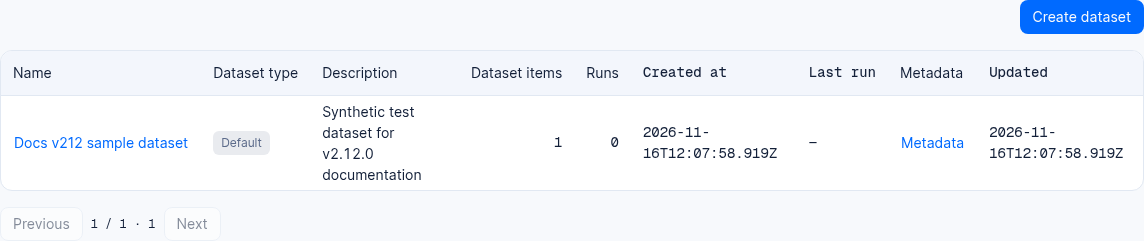
A test project dataset with one synthetic item; actual content depends on project data and permissions.
Core Concepts and Architecture
The dataset engine binds static test items (Dataset Items) with dynamic execution trajectories (Traces / Observations) into immutable run records (Dataset Runs), and seamlessly integrates with automated evaluators (Evaluations) to build a repeatable, comparable benchmark evaluation pipeline.
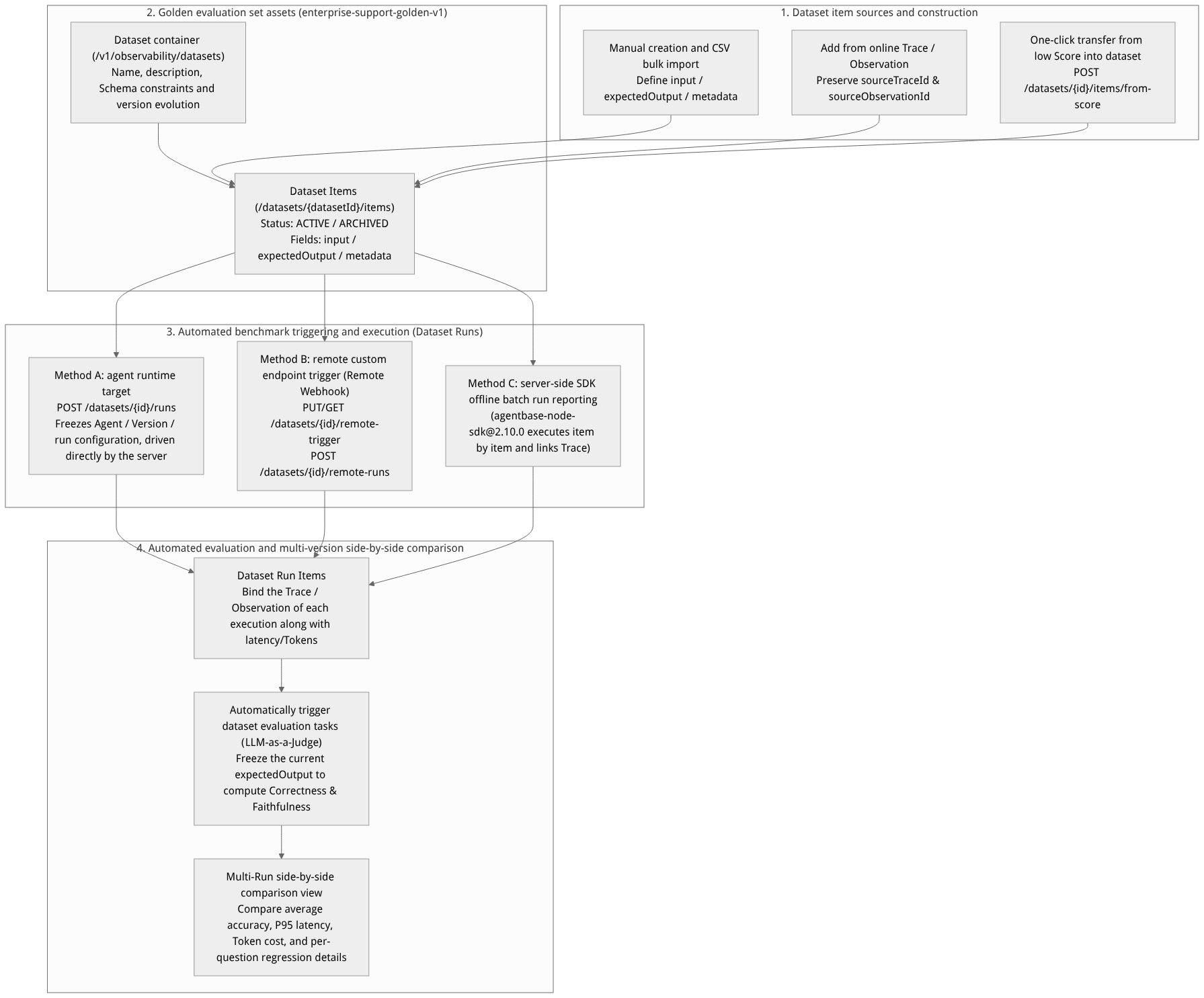
Flow diagram, not a runtime screenshot; read the relationships between steps or states along the arrows.
View the flow diagram in full size
Dataset Core Entities and Field Definition Table
| Core entity | Key fields | Type and constraints | Business meaning and evaluation role |
|---|---|---|---|
| Dataset | namedescriptionmetadatainputSchemaexpectedOutputSchema | string (required, unique within the project, e.g., enterprise-support-golden-v1)string / objectoptional JSON Schema | A logical container organizing similar evaluation cases. Supports optional configuration of inputSchema and expectedOutputSchema to perform structured JSON Schema validation on new items. |
| Dataset Item | idinputexpectedOutputmetadatasourceTraceIdsourceObservationIdstatus | input: required (JSON or text)expectedOutput: optional standard answerstatus: ACTIVE (default) or ARCHIVED | A single benchmark test question. When status is set to ARCHIVED, the item retains its historical associated records but no longer participates in subsequently created benchmark runs (Dataset Runs). |
| Dataset Run | runId / namedescriptionmetadata | Binds to a specific test configuration snapshot (e.g., qwen-plus-v1 vs qwen-turbo-v1) | A complete regression test batch initiated against the same dataset. When targeting Agent Runtime, the Agent version, model parameters, and knowledge base configuration at that time are automatically frozen. |
| Dataset Run Item | datasetItemIdtraceIdobservationId | Links a single question with the Trace / Observation actually generated in that run | Precisely anchors the static question (including expectedOutput) with the dynamic inference results of that run (output, latency, tokens, cost) and the Score produced by automated evaluation. |
Roles, Entry Points, and Relationships
Console Entry and REST API Permission Matrix
The Console entry is Project → Agent Ops → Datasets (route: /console/project-{region}-{projectId}/observability/datasets).
| Operation | Console entry | REST API endpoint | Required permission Scope |
|---|---|---|---|
| Query and create datasets | Dataset list page → Create dataset | GET/POST /v1/observability/datasets, GET .../:datasetId | observability.datasets.read / write |
| Manage dataset items and CSV import | Dataset detail → Items tab / Import CSV | GET/POST /v1/observability/datasets/:datasetId/items, PATCH/DELETE .../:itemId | observability.datasets.read / write |
| Batch-transfer low Scores into a dataset | Score list/detail → Add to dataset | POST /v1/observability/datasets/items/from-score/preview, POST /v1/observability/datasets/:datasetId/items/from-score | observability.datasets.write |
| Trigger dataset runs (including Agent Workbench target) | Dataset detail → Runs → New run | GET/POST /v1/observability/datasets/:datasetId/runs, GET .../runs/:runId/items | GET: observability.datasets.readWrites: observability.datasets.write |
| Configure and trigger remote custom endpoint runs | Dataset detail → Remote Trigger configuration | GET/PUT/DELETE /v1/observability/datasets/:datasetId/remote-trigger, POST .../remote-runs | GET: observability.datasets.readWrites: observability.datasets.write |
The dataset endpoints above require a valid user identity, such as a signed-in session or user JWT; API key scopes alone do not establish that identity. Browsing scores in the Console also requires score read access.
Synergy with Other Modules
Bidirectional backflow with Traces and Scores: When a typical online Bad Case is discovered during operations (e.g., a ticket Q&A exhibiting hallucination or retrieval omission), operators can click Add to dataset directly on the Trace, Observation, or low Score page to capture the real online input (
input), model output, andsourceTraceId/sourceObservationIdintoenterprise-support-golden-v1with one click, preventing similar issues from recurring in subsequent iterations.Signature-freeze linkage with Evaluations and root cause analysis (RCA): Only runs bound to dataset standard answers (
expectedOutput) can enable the Answer accuracy (Accuracy / Correctness) evaluation in the four-stage RAG evaluation. During evaluation execution, the system uses an independent-domain HMAC signature to freeze the current question, reference answer (expectedOutput), Trace, and RAG retrieval fingerprint indatasetEvidence— afterwards, even if someone modifies the current standard answer of a dataset item, the root cause analysis (RCA) of historical scores still strictly verifies the frozen snapshot from that run, avoiding incorrect attribution.
Feature Details and Operation Guide
1. Create the golden dataset enterprise-support-golden-v1 and enter items
Log in to the Agentbase Console, enter project
企业智能客服与知识中台(enterprise-ai-hub-210), and open Agent Ops → Datasets.Click Create dataset in the upper-right corner, fill in the name
enterprise-support-golden-v1and description"企业智能客服与技术支持黄金基准集(覆盖 OceanBase 排障、AI 网关限流与 SOP 问答)", and click Save.Three ways to enter dataset items:
Method One: manual creation or CSV batch import: On the dataset detail page, click New item or Import CSV, and batch import a table containing
input(user ticket question),expectedOutput(standard troubleshooting steps and answer), andmetadata(e.g.,{"ticketCategory": "oceanbase-vector", "difficulty": "hard"});Method Two: convert from online Traces / Observations: On the Agent Ops → Traces detail page, select a typical trace or
GENERATIONnode, click Add to dataset, chooseenterprise-support-golden-v1, polish and correctexpectedOutputmanually, and save; the system automatically recordssourceTraceIdandsourceObservationId;Method Three: batch conversion from low Scores (
from-score): Filter low-score records on the scores page, first call/items/from-score/previewto preview the deduplication status, then call/items/from-scoreto batch-transfer them into the dataset.
The API example uses a short-lived user JWT with access to the project, issued by a signed-in client. It does not link a source trace; to add one, use existing, matching Trace and Observation IDs from the same project.
Create the dataset first. After confirming a 2xx HTTP status, take its ID from the response, set DATASET_ID, and run the item request separately. Set the short-lived APPBASE_USER_JWT securely in the current shell without putting it in command history.
(
  set +x
  set -o pipefail
  : "${APPBASE_ENDPOINT:?Set APPBASE_ENDPOINT}" "${APPBASE_PROJECT_ID:?Set APPBASE_PROJECT_ID}" "${APPBASE_USER_JWT:?Set APPBASE_USER_JWT}"
  builtin printf 'X-Appwrite-JWT: %s\n' "$APPBASE_USER_JWT" | curl --disable --header @- -fsS -i -X POST "${APPBASE_ENDPOINT%/}/observability/datasets" \
    -H "X-Appwrite-Project: ${APPBASE_PROJECT_ID}" \
    -H "Content-Type: application/json" \
    --data '{
    "dataset": {
      "name": "enterprise-support-golden-v1",
      "description": "企业智能客服与知识中台黄金评测基准集 (v2.10.0)",
      "metadata": {
        "owner": "enterprise-ai-hub-team",
        "knowledgeBaseId": "kb_enterprise_support"
      }
    }
  }'
)
Add an item after creation succeeds:
(
  set +x
  set -o pipefail
  : "${APPBASE_ENDPOINT:?Set APPBASE_ENDPOINT}" "${APPBASE_PROJECT_ID:?Set APPBASE_PROJECT_ID}" "${APPBASE_USER_JWT:?Set APPBASE_USER_JWT}"
  : "${DATASET_ID:?Set DATASET_ID from the successful create response}"
  builtin printf 'X-Appwrite-JWT: %s\n' "$APPBASE_USER_JWT" | curl --disable --header @- -fsS -i -X POST "${APPBASE_ENDPOINT%/}/observability/datasets/${DATASET_ID}/items" \
    -H "X-Appwrite-Project: ${APPBASE_PROJECT_ID}" \
    -H "Content-Type: application/json" \
    --data '{
    "item": {
      "input": {
        "question": "OceanBase Shared V2 项目在构建 1024 维 HNSW 向量索引时报错 -4013 (OB_ALLOCATE_MEMORY_FAILED),应该如何排查和修复?",
        "userId": "user_zhangwei_001"
      },
      "expectedOutput": {
        "answer": "请结合当前数据库版本、错误日志与资源指标定位原因,并依据对应版本的官方文档评估处理方案。"
      },
      "metadata": {
        "ticketId": "TK-20261022-001",
        "domain": "oceanbase-vector-index",
        "sla": "P0"
      }
    }
  }'
)
2. Trigger automated benchmark testing (Agent Runtime Workbench vs custom remote endpoint vs SDK)
Once the dataset enterprise-support-golden-v1 is ready, select the appropriate run type. The table lists some integration options.
The current Console also offers prompt, agent, memory, and RAG run types; memory and RAG availability depends on the dataset type. Prompt, memory, and RAG use the dataset run endpoint, while agent targets use the remote run endpoint.
| Run mode | Trigger entry / interface | Execution principle and core advantages | Applicable scenarios |
|---|---|---|---|
| Mode A: Agent Runtime Workbench target | Console Datasets → New run → Agent, then select the project workbench | The Console first saves the dataset remote trigger, then submits POST /v1/observability/datasets/:datasetId/remote-runs; check the actual run status and details for results. | Evaluate the project workbench against a dataset. |
| Mode B: custom remote endpoint (Remote Webhook) | Console Configure remote trigger (PUT .../remote-trigger) and click Trigger remote run (POST .../remote-runs) | After a remote address and optional non-secret configuration are saved, the platform sends dataset items to the endpoint. Plain Webhooks do not support configuring an authentication header here; the endpoint must report run items itself. A successful response does not automatically register results or associate a Trace. | Business agents deployed in self-built microservices or Functions, where the team wants to trigger regression testing with one click from the Console. |
| Mode C: Programmatic batch runs via server-side SDK | Use agentbase-node-sdk@2.12.0 in CI/CD pipelines to pull items, invoke models, and report associated results | Gain fully autonomous control over concurrency, prerequisite data preparation, and multi-step orchestration in local or CI scripts, and record comparison batches via POST /v1/observability/datasets/:datasetId/runs. | Automated quality gates integrated into Git commits or daily scheduled builds (Nightly Build). |
Selecting an agent target updates the existing remote trigger for this dataset. If an AI Gateway HTTP agent is selected, the Console may also create a gateway key for that target. Check the existing configuration and permissions before submitting. An accepted run is not necessarily complete; check the final status in its details.
3. Compare multiple versions side by side in the Runs view and drill down into per-item regressions
Go to the Runs tab of dataset
enterprise-support-golden-v1.Select two or more different run batches (for example
benchmark-qwen-turbo-baselineandbenchmark-qwen-plus-graphrag-v210) to enter the side-by-side comparison view:Global aggregate metrics comparison: intuitively compare each batch's average score, P50/P95 response latency, average Token consumption, and estimated total cost per run across evaluators such as Correctness, Faithfulness, and Context Relevance;
Item-by-item drill-down comparison: the table displays row by row the same
datasetItem's actual output (Output), score differences, and status across different Runs. For degraded cases with lower scores, click the associated Trace link to go directly to Trace details and root cause analysis to locate the cause.
Entry point and creation
Open Observability / AgentOps in the project sidebar and go to Assets / Data → Datasets. If you do not see this section, first confirm that observability is enabled on the current instance; see Observability overview.
Click Create dataset and fill in the name; description and metadata are optional.
Select the case type: Default, Good, or Bad. Use a JSON object format when metadata needs to be filled in.
After saving, you will enter the dataset detail page, where you can maintain test cases in Items, view run records in Runs, and compare run results in Reports.
Adding test cases
Each case requires an input and an expected output. You can create them manually or import a CSV. When editing a case, you can also associate an existing Trace and select Observations from it as needed, making it easy to build regression samples from real requests.
Importing from CSV
Select Import CSV to upload a UTF-8 .csv file with headers. First check the column mapping and preview, then start the import. At least one column must be mapped to Input and one to Expected output; remaining columns can be mapped to Metadata or ignored. Common headers are matched automatically, but you should still confirm them in the preview:
| CSV header example | Default mapping |
|---|---|
input、question、query、prompt | Input |
expected_output、ground_truth、reference_answer | Expected output |
metadata、meta | Metadata |
| Other columns | Ignored |
For example, the following two-column CSV directly satisfies the required mappings:
input,expected_output
"如何重置密码?","在登录页选择忘记密码,并按页面提示完成操作。"
A single file can be at most 10 MiB, with at most 1,000 data rows and 100 columns. If the file is empty, has empty or duplicate headers, is malformed, or exceeds the limits, fix the CSV before uploading again. If individual data rows fail to write, the import result keeps the success/failure counts along with failed row numbers and reasons; before retrying, filter out the failed rows first — reimporting the entire file may duplicate already-successful records. Do not assume all records succeeded merely because the import "completed".
Building cases from Traces
In the source selector when adding or editing an item, search for and select a Trace; if you need to locate a specific step, select an Observation within that Trace. After saving, the item retains its source association, and you can return from the case to the corresponding trace to inspect context. If you switch the Trace, you need to re-confirm the Observation selection.
Running and viewing results
Create a Run on the dataset detail page, fill in the run name, and choose an execution mode:
| Execution mode | Pre-run checks |
|---|---|
| Prompt | First select the evaluation template, Prompt/version, and LLM connection, then fill in the model and model parameters JSON; the page will prompt for any missing required configuration. |
| Agent | Select the project Draft Agent or an external Agent target on the AI Gateway; if the list is empty, first confirm that an available target exists in the project. |
After the run, check status and records in Runs. Open an individual run's details to compare input, expected output, actual output, and scores item by item; the page also shows available Traces, latency, cost, and failure information. Reports lets you compare average latency, average cost, and scores across different Runs. If a run or scoring is still processing, a score is empty, or a case failed, first check the corresponding status, errors, and Traces; an empty score does not mean a score of zero, nor does it mean the case passed.
Dataset runs depend on Prompts, model connections, or Agent execution targets available in the current project, as well as configured evaluators. For evaluation configuration and result interpretation, see Evaluations and scoring; for metric sources and trace-derived signals, see Metrics analysis.
When testing knowledge base Q&A, keep the questions and reference answers fixed, select an Agent that produces genuine retrieval evidence, and combine query quality, context relevance, answer faithfulness, and answer accuracy templates. For the complete procedure and submission exception handling, see Evaluating RAG answers with datasets. Actual answers cannot replace reference answers, and missing scores cannot be used as evidence of passing.
FAQ and Troubleshooting
1. When selecting the "Answer Accuracy (Accuracy / Correctness)" template in dataset evaluations, why do some items produce no score?
Cause analysis: Answer Accuracy (Correctness) evaluation strongly depends on the dataset item containing a non-empty valid reference standard answer (
expectedOutput). If a Dataset Item only hadinputfilled in when created or imported from a Trace, whileexpectedOutputwas empty or missing, the evaluation engine will refuse to submit an empty standard answer to the Judge model, and thus skips accuracy scoring for that item.Resolution: Check the items that produced no score in the dataset's Items tab, fill in a complete
expectedOutputstandard answer, and then trigger a new Dataset Run.
2. After modifying an item's expectedOutput standard answer, will the scores and root cause analysis of previously completed historical Dataset Runs change automatically?
Cause analysis: Do not assume every dataset evaluation stores a signed snapshot of the complete
inputandexpectedOutput. When a managed RAG evaluation binding targets a dataset, the system freezes signeddatasetEvidenceincluding the question and evidence fingerprint; only the answer-accuracy stage includes the extracted reference and its fingerprint. Check actual run records for the historical evidence and reanalysis behavior of other evaluation types.Resolution: Preserve the original item and historical Run records. After correcting the reference answer, create a new Dataset Run for updated results and verify the evaluation type and actual evidence used.
3. How can I temporarily mask old items in a dataset that are no longer applicable, while keeping their comparison records in historical Runs?
Cause analysis: Physically deleting (
DELETE) a Dataset Item directly would cause historical Runs to lack the item's stem for comparison.Resolution: Do not delete the item directly; instead, edit it (
PATCH /v1/observability/datasets/:datasetId/items/:itemId) to switch its status fromACTIVEtoARCHIVED(archived). Archived items will not enter subsequently triggered benchmark runs, but they remain fully preserved and viewable on the historical Run detail pages.
Related Documentation
Memory / RAG runs and collection root causes
Dataset runs can use Memory or RAG. RAG requires a READY knowledge base version, retrieves from that frozen version and generates answers; retrieval only is unsupported. Memory explicitly generates answers with the source Observation model when enabled, executes retrieval only when disabled, and uses a snapshot when omitted. Neither type accepts a shared execution model override. Snapshots do not execute or incur invocation cost and reject idempotencyKey. Executed runs enter the queue and produce run specific Traces. Targeting another Memory user requires the team owner role.
Open an existing dataset → Collection root causes, create an analysis and choose a run to compare its Traces. The Runs tab can open its latest analysis. If a completed result exists for the same collection, a rerun requires confirmation and creates new history. A failed detail read should retry the read only. Analysis accepts 2–100 distinct Traces and at most 500 associated scores, with usable existing root cause analyses on at least two Traces. Access requires dataset read permission in addition to score and trace read permissions.
Importing samples from analysis insights requires one type and one trusted application origin, including the existing dataset items. Mixed or unverified origins are rejected. Details distinguish Trace coverage, scores actually used, and failed or unreadable results. Scores above the automatic analysis threshold are not current failures. Historical gaps are not automatically reanalyzed.