
Team Management
Feature Overview
Team Management (Teams) is Agentbase's multi-tenant grouping and role-based access control (RBAC) capability for end users (End Users) within a project. When building enterprise-grade SaaS, customer service portals, and multi-department collaborative agent applications (such as the sample project 企业智能客服与知识中台, Project ID: enterprise-ai-hub-210), relying solely on “authorizing by individual user ID (Role.user(id))” or “opening access to all registered users (Role.users())” often fails to meet complex organizational collaboration needs. Through Auth → Teams, enterprises can organize a project's end users into different business teams (e.g., team_support_ops VIP Customer Technical Support, team_kb_governance Enterprise Knowledge Base Governance Experts, team_ai_platform AI Agents and Model Platform), and assign fully custom role labels to members within each team (e.g., owner, admin, support_lead, reviewer, auditor).
Once an end user joins a team and obtains the corresponding team role, Agentbase's permission engine automatically injects team:<TEAM_ID> and team:<TEAM_ID>/<ROLE> into that user's runtime effective roles. Whether it is a structured database table (such as the customer support ticket table customer_tickets in enterprise_biz_db), a file storage bucket (such as kb_enterprise_docs and agent_multimedia_bucket), or a messaging topic, you can bind Role.team('team_support_ops') or Role.team('team_support_ops', 'admin') directly, achieving zero-trust data governance where “membership in a team grants permissions, and removal revokes them immediately”.
Core Concepts and Architecture
In Agentbase, the concepts most easily confused by beginners are project end-user teams (Auth Teams) and Console organization members (Organization Members). The diagram below clearly shows the isolation boundary between the two, as well as the complete architecture by which Auth Teams drive data-level RBAC authorization within a project:
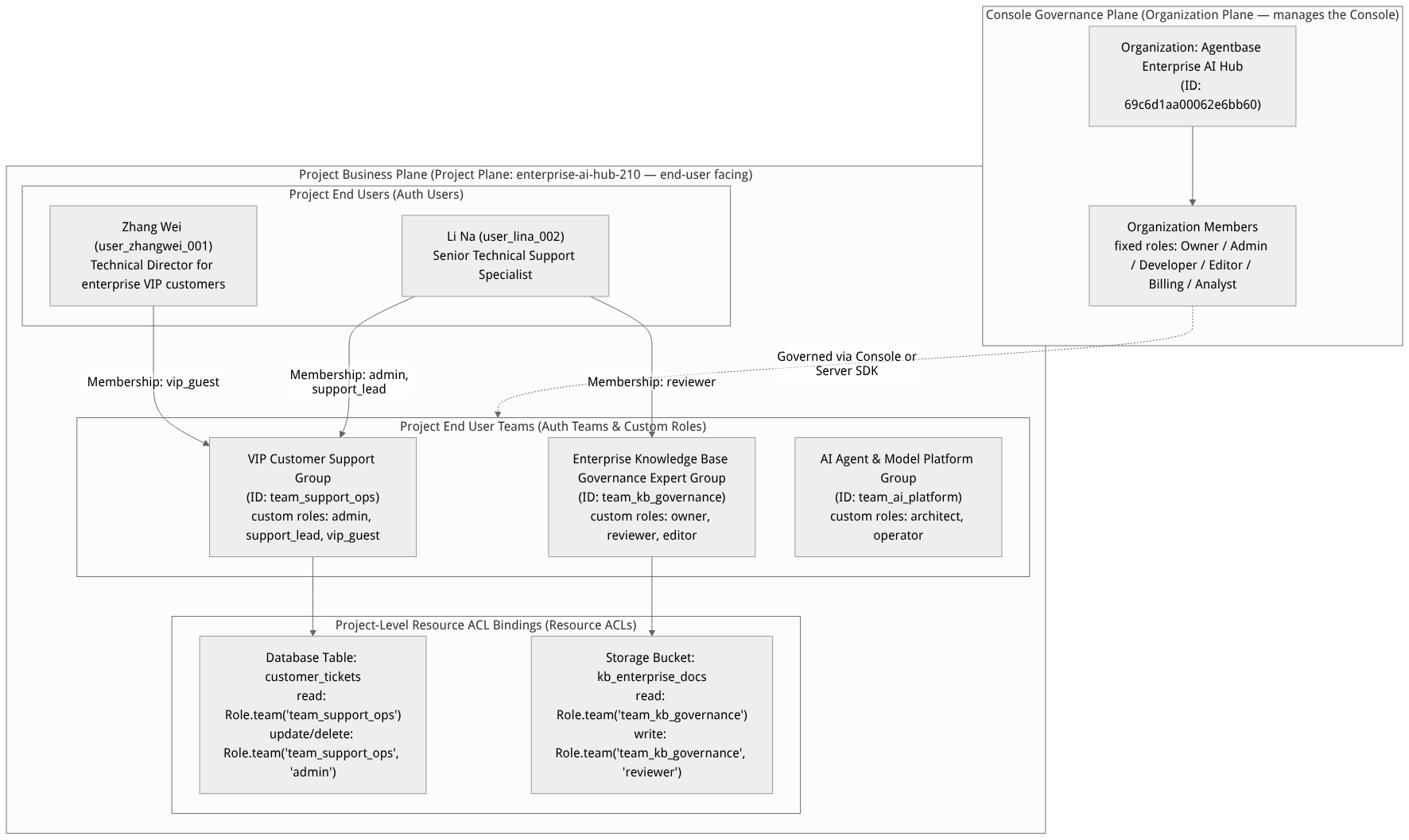
Flow diagram, not a runtime screenshot; read the relationships between steps or states along the arrows.
View the flow diagram in full size
Essential Differences Between Auth Teams and Organization Members
| Comparison dimension | Project end-user teams (Auth Teams, the scope of this document) | Console organization members (Organization Members) |
|---|---|---|
| Managed objects | End users in business applications (Auth Users, such as customers user_zhangwei_001 and support agents user_lina_002) | Platform developer, operations, and administrator accounts who log in and use the Agentbase Console |
| Core purpose | Controls data access permissions within business applications (database row-level ACLs, bucket and file ACLs, messaging subscription permissions) | Controls cloud platform infrastructure governance permissions (creating projects, configuring the AI gateway, managing database table schemas, viewing billing) |
| Role system | 100% fully custom string labels (e.g., admin, support_lead, vip_guest, reviewer); a member can hold multiple roles simultaneously within the same team | 6 system-preset fixed roles: Owner, Admin, Developer, Editor, Billing, Analyst |
| Management entry point | Project sidebar Auth → Teams (route /console/project-{region}-{project}/auth/teams) | Organization top bar or sidebar Members page (see Organization and Account Center for details) |
| API endpoint | /v1/teams (callable by both clients and server per policy) | /v1/organizations/{organizationId}/memberships (Console organization management domain only) |
Typical Business Team Planning Example (enterprise-ai-hub-210)
In the sample project 企业智能客服与知识中台, the following three core business teams are planned around support ticket workflows, knowledge base document governance, and AI gateway operations:
Team ID ($id) | Team name (name) | Team preferences (prefs) example | Custom role planning within the team | Bound business resources and permission scope |
|---|---|---|---|---|
team_support_ops | VIP客户技术支持组 | {"slaTargetMinutes": "15", "escalationChannel": "dingtalk_vip"} | admin (team lead), support_lead (first-line expert), vip_guest (customer representative) | Bound to the customer_tickets table in database enterprise_biz_db: Role.team('team_support_ops') can read all tickets in the team, Role.team('team_support_ops', 'admin') can modify ticket status and assignees. |
team_kb_governance | 企业知识库治理专家组 | {"defaultKbId": "kb_enterprise_support", "requireReview": "true"} | owner (knowledge base owner), reviewer (review expert), contributor (document contributor) | Bound to storage bucket kb_enterprise_docs: Role.team('team_kb_governance', 'reviewer') has write permission to upload and update SOP documents (e.g., 智能客服SOP标准作业手册.md). |
team_ai_platform | AI智能体与模型平台组 | {"gatewayId": "gw_7194685489feb1e169548619", "primaryModel": "qwen-plus"} | architect (AI architect), operator (evaluation engineer) | Bound to storage bucket agent_multimedia_bucket and the evaluation dataset table, responsible for uploading multimodal evaluation samples and analyzing agent conversation trajectories. |
Roles, Entry Points, and Relationships
Console Entry Point and Permission Requirements
Navigation path: Log in to the Agentbase Console → enter project
企业智能客服与知识中台(enterprise-ai-hub-210) → left navigation bar Auth → click the top Teams tab.Route addresses:
Team list page:
/console/project-{region}-{project}/auth/teamsTeam detail page:
/console/project-{region}-{project}/auth/teams/team-{teamId}(with three sub-tabs: Overview / Members / Activity)
Operation permission gates:
Browsing the team list and viewing team members and audit records requires the
teams.readpermission (organization rolesowner,admin,developer,editor,analyst).Creating teams, modifying team names and preferences, inviting/removing members, modifying member roles, and deleting teams require the
teams.writepermission (organization rolesowner,admin,developer,editor).
Relationships with Other Modules
Two-way synchronization with User Management (Auth Users): After adding or removing members in Auth → Teams → Team detail → Members, the team list of the corresponding user in the Auth → Users → User detail → Memberships tab is updated in real time.
Integration with email templates (Auth Templates): when an email invitation is initiated via a client SDK or when admin direct addition is not enabled, the system renders the Invite user template in Auth → Templates (containing the
{{team}},{{user}},{{project}},{{redirect}}variables) to send a confirmation email to the invitee.Integration with Databases and Storage: The team ID and custom role names directly constitute the
team:<TEAM_ID>andteam:<TEAM_ID>/<ROLE>permission principals, taking effect in real time in table-level permissions, Row Security, bucket-level permissions, and File Security.
Feature Details and Operation Guide
1. Creating and Managing Teams (Create team)
Go to the project's Auth → Teams tab; the page displays all teams in the current project (table columns include Name team name, Members member count, Created creation time, with keyword search by name supported at the top).
Click the Create team button in the upper right corner to open the create team dialog:
Name (required): Enter a team name with clear business meaning (up to 128 characters), e.g.,
VIP客户技术支持组.Team ID (optional): By default, a unique ID is generated automatically by the system. It is recommended to click the Team ID label to expand the custom input field and enter a semantic identifier (e.g.,
team_support_ops,team_kb_governance,team_ai_platform). Custom IDs allow onlya-z,A-Z,0-9, periods (.), hyphens (-), and underscores (_), with a maximum length of 36 characters, and must not start with a special character.
Click the Create button to complete creation. The system shows the notification
"{name} has been created"and automatically opens the team's Overview detail page.
2. Team Detail Page Configuration (Overview / Members / Activity)
After entering the team detail page (e.g., /auth/teams/team-team_support_ops), you can perform fine-grained management through three tabs:
| Tab name | Card / section | Function description and operating guidelines |
|---|---|---|
| Overview | Basic information overview | The top displays the team ID (copyable), the current total member count (Members), and the creation time (Created). |
| Overview | Name (rename team) | After modifying the team display name, click Update. Modifying the display name does not change Team ID and therefore does not affect any database rows or bucket permissions already bound to team:<TEAM_ID>. |
| Overview | Preferences (team preferences) | Maintain team-level shared JSON key-value configuration (e.g., slaTargetMinutes: "15", defaultKbId: "kb_enterprise_support"). Any member in the team can read the team's shared configuration via the client SDK by calling teams.getPrefs(teamId). |
| Overview | Delete team | Located in the danger zone at the bottom. After clicking Delete and confirming in the dialog, the team and all of its memberships and team preferences are permanently deleted; the operation is irreversible (see the risk warning below for details). |
| Members | Member list and management | Shows all members' Name (click to jump to the user's detail page), Roles (list of custom roles), and Joined (join time), with support for clicking Create membership to add members or removing members inline. |
| Activity | Team audit log | Records all audit events in reverse chronological order, including team creation, renaming, preference changes, member additions/removals, and role adjustments. |
3. Adding team members and custom role assignment (Create membership)
There are two paths for adding members to a team: direct addition (or sending invitations) via Console / Server SDK in administrative mode and the end-user self-service invitation flow via client SDKs.
Steps to add a team member in the Console
Go to the target team's detail page (e.g.,
team_support_ops), switch to the Members tab, and click the Create membership button in the upper-right corner.Fill in the member information in the dialog:
Email (required): Enter the email address of the user to be added (e.g., Li Na's
lina.support@agentbase-ops.example.comor Zhang Wei'szhangwei@customer-corp.example.com). If no Auth user exists for that email yet, the system will automatically create a new user record with that email.Name (optional): Enter the member's display name (e.g.,
李娜).Roles (optional, strongly recommended): Enter a custom role name in the tag input field and press Enter to confirm. Role names are fully customizable with no preset enumeration restrictions, and multiple roles can be entered at once (for example, adding both
adminandsupport_leadroles to Li Na).
After submission, the membership is created (if triggered via the client invitation flow, Agentbase will send an invitation confirmation email to that address, and the recipient joins by clicking the confirmation link in the email).
Orchestrating teams and member roles directly via the Server SDK (agentbase-node-sdk@2.12.0)
In enterprise automated provisioning flows (such as syncing organizational structures from HR or CRM systems), backend services can use an API Key with teams.write privileges to directly create teams and manage member roles:
Before running, replace <APPBASE_ENDPOINT_WITH_V1> and <APPBASE_PROJECT_ID> with the confirmed target API endpoint and project ID. Until replaced, the SDK rejects the invalid endpoint before making a request. Replace <APPBASE_INVITE_REDIRECT_URL> with an allowed redirect URL for the intended environment.
import { Client, Teams } from 'agentbase-node-sdk'; // Pin version @2.12.0

const client = new Client()
    .setEndpoint('<APPBASE_ENDPOINT_WITH_V1>')
    .setProject('<APPBASE_PROJECT_ID>')
    .setKey('<APPBASE_API_KEY>');

const teams = new Teams(client);

// 1. Create the "Enterprise Knowledge Base Governance Expert Group" team
await teams.create(
    'team_kb_governance',
    '企业知识库治理专家组',
    ['owner', 'reviewer'] // Default role for the creator (used as the initial role template when called via the Server API)
);

// 2. Add senior support expert Li Na (user_lina_002) to the VIP customer technical support group and grant her the admin and support_lead roles
const membership = await teams.createMembership(
    'team_support_ops',
    ['admin', 'support_lead'],
    'lina.support@agentbase-ops.example.com', // Member email
    'user_lina_002',                          // Specify an existing User ID
    undefined,                                // Phone number (optional)
    '<APPBASE_INVITE_REDIRECT_URL>', // Invite redirect URL
    '李娜'                                    // Member name
);

// 3. Dynamically upgrade or adjust a member's role in the team (immediately affects their data access permissions)
await teams.updateMembership(
    'team_support_ops',
    membership.$id,
    ['admin', 'support_lead', 'auditor']
);
4. Best practices for team-scoped data permissions
When designing data tables (e.g., customer_tickets) and storage buckets (e.g., kb_enterprise_docs) for multi-tenant or multi-department collaboration, the following three-tier team role authorization specification is recommended:
| Business action | Recommended role expression | Actual effect description |
|---|---|---|
| Read-only sharing for all team members | Permission.read(Role.team('team_support_ops')) | Any user who is a confirmed member of team_support_ops (regardless of whether their Roles are empty or vip_guest/support_lead) can read the support ticket or document. |
| Processing and updates by frontline engineers | Permission.update(Role.team('team_support_ops', 'support_lead')) | Only members holding the support_lead role in team_support_ops can update support ticket replies; regular vip_guest members cannot tamper with them. |
| High-risk deletion and archiving by team administrators | Permission.delete(Role.team('team_support_ops', 'admin')) | Only team leads holding the admin role in team_support_ops can perform deletion, achieving least-privilege separation of duties within the team. |
FAQ and Troubleshooting
What should I do if creating a team returns user_not_found?
The service could not find the project user it needs to associate. When a Console user creates a team across identity domains, the service attempts to match a project user through a verified email address or phone number. Ask a project administrator to check the Console account and project user identities and their verification status; do not change someone else's verification information yourself. Retry after the identities have been checked.
Q1: If a user is assigned the admin role (e.g., team:team_support_ops/admin) in a team, can they log in to the Agentbase Console to manage the project?
Answer: Not at all. Teams and roles in Auth → Teams (even if named owner or admin) 100% only apply to business data permissions within the project (Databases / Storage / Messaging) and have zero overlap with Agentbase Console organization members (Organization Members). Project end users cannot use their accounts to log in to the Console, let alone modify project infrastructure configuration. To authorize colleagues to log in to the Console for collaborative project management, go to the organization-level organization and account center to invite organization members.
Q2: After removing a member from team team_support_ops (or deleting the entire team), what happens to the database rows and bucket files previously authorized to Role.team('team_support_ops')?
Cause analysis and impact:
Removing a single member: Takes effect immediately. The user's runtime effective role set no longer includes
team:team_support_opsor its sub-roles, and any subsequent read/write requests targetingcustomer_ticketsorkb_enterprise_docswill be intercepted by the server due to missing matching roles (returning401, or unauthorized rows are automatically filtered out of list queries).Deleting the entire team: The team entity and all of its Membership records are permanently deleted. The original database rows and bucket files themselves will not be deleted, but the residual
team:team_support_opspermission entries on those resources will no longer match any user (unless an administrator later recreates a team with the same IDteam_support_opsand re-adds members).
Q3: Why does calling teams.createMembership() on the client side to invite a new member throw an error SMTP Disabled, or why doesn't the recipient receive the invitation email?
Root cause analysis: When a team member invitation is initiated from a client SDK, Agentbase must send the invitee an invitation email containing a confirmation link ({{redirect}}); the Membership status only changes from pending to effective (confirm: true) after the invitee clicks to confirm. If the project has not yet configured a custom SMTP server or the platform's default email channel is restricted, email delivery will fail.
Solution:
Standard practice in production: configure a corporate custom SMTP service in the project's Settings → SMTP, and check the Invite user template in Email templates (Templates).
Email-free backend direct-add approach: If your team members are managed centrally by an enterprise backend (without users clicking email confirmations), use the Server SDK (API Key path) holding the
teams.writescope to callteams.createMembership()— memberships created via the Server API Key path are directly marked as confirmed (confirm: true) and take effect immediately, with no dependency on the email confirmation flow.
Related Documentation
Auth overview: A comprehensive look at
Role.team(id, role)permission expressions and the identity authentication architecture.User management (Users): Check all teams a user has joined in the Memberships tab of the individual user's detail page.
Auth security policies (Security): Use the Memberships privacy card to control whether team members can see each other's names, emails, and MFA status.
Email templates (Templates): Customize the body and link variables of team invitation emails (Invite user).
Organization and account center: Manage organization administrators and developer members who log in to the Agentbase Console.