
Knowledge Base Settings
Knowledge base settings let you inspect basic information, adjust document processing and retrieval defaults, manage lexicon bindings, and perform operations such as rebuilding and deletion. What you can edit depends on account permissions, knowledge base state, and version-management configuration.
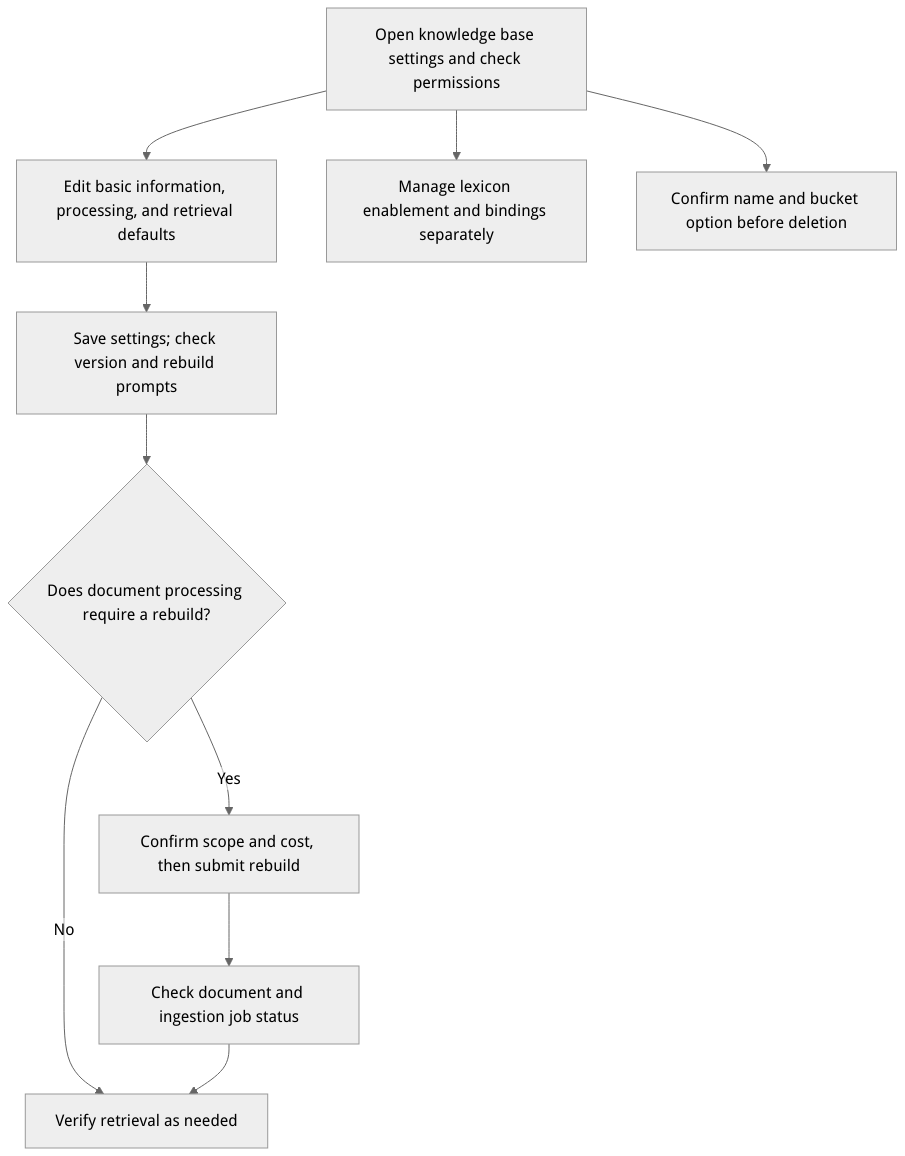
This is a workflow diagram, not a runtime screenshot; actual options and results depend on your environment.
View and edit settings
In the target project, open Knowledge base, select the knowledge base, and open Settings. The page shows its name, description, embedding model and dimensions, parser configuration, and index information.
With write access, select Edit and adjust the name, description, shared indexing model, parsing and chunking, retrieval defaults, or ingestion tracing as needed. Before saving, confirm that selected models and providers are available to the project.
With version management enabled, changes to document processing or the shared indexing model may require a writable draft version. If the page indicates that documents require rebuilding, review the processing cost first, follow the prompt, and check job status.
The embedding model and dimensions are displayed as fixed values on the settings page. Do not assume that changing other settings automatically changes the existing vector space or immediately applies new settings to every document.
Document parsing and chunking
The settings form distinguishes the document parser from the chunking strategy:
Document parser choices are
text,vlm, andmineru. Selectingvlmrequires a compatible vision model; actual availability depends on the environment.Chunking choices are
general,title,smart,regex, andfaq. Depending on the selection, the form shows fields such as chunk size, overlap, title level, minimum chunk length, delimiter, or regular expression. Not every strategy uses every field.The form supports image understanding and content enhancement. When enabling image understanding, choose an image-capable model and provide a prompt; the current console accepts a concurrency value of
1–8. Enable keyword, question, and metadata extraction as needed.
After changing document processing settings, follow the rebuild guidance and inspect job status. Rebuilding, ingestion, and retrieval verification are separate steps: wait for the relevant jobs to finish, then inspect document status and search results.
Retrieval, tracing, and lexicons
The form exposes retrieval defaults including similarityThreshold, vectorWeight, rateLimit, and rateLimitPeriod. See Search and question answering for request parameters and override behavior; example model names and values are not defaults for every environment.
The ingestion tracing switch is tracingEnabled; complete traces also depend on environment configuration. Lexicon bindings are managed separately on the settings page; see Lexicon management for enablement and binding behavior.
Rebuild and delete
Rebuild documents: When the page indicates that processing changes require a rebuild, open the rebuild flow. Confirm the target and resource cost before submitting, then inspect each processing status; successful submission does not mean processing is complete.
Delete a knowledge base: Deletion has a significant impact. The console asks you to enter the knowledge base name and offers an option to delete its storage bucket as well. Check the target, bucket option, and backup requirements before submitting.
Troubleshooting
Why do existing documents look unchanged after saving? Configuration changes and document reprocessing are separate steps. Check the rebuild prompt and the status of documents and ingestion jobs.
Why is image understanding or retrieval unavailable? Check whether the project model and provider are available, whether the feature is enabled, and whether the corresponding job failed. A successful submission is not proof of completed processing when a model is unavailable.