
Security Policies
Feature Overview
Authentication security policies (Security) are the project-level identity security control hub of Agentbase (route: /console/project-{region}-{project}/auth/security). In enterprise production environments (e.g., the sample project 企业智能客服与知识中台, Project ID: enterprise-ai-hub-210), security administrators can use the seven core configuration cards on this page to define, in one place: the project's total end-user registration limit (Users limit), login session lifetime (Session length), maximum concurrent online devices per user (Sessions limit), enterprise-grade password compliance policies (Password policies: password history reuse prevention, weak password dictionary blocking, personal sensitive information exclusion), session security alerts and automatic session invalidation on password change (Session security), mock phone numbers for testing and mobile app store reviews (Mock phone numbers), and privacy visibility boundaries among multi-tenant team members (Memberships privacy).
Agentbase also provides multi-factor authentication (MFA), including authenticator apps, email, SMS, and recovery codes. Clients must implement the corresponding verification flow; verify policy and compliance requirements for your deployment and use case.
Core Concepts and Architecture
Agentbase applies project security policies to operations such as registration, login, and password changes. The table below describes each policy and its boundaries.
Core Security Concepts and Mechanisms
| Security control domain | Core policy items | Runtime execution semantics and technical boundaries |
|---|---|---|
| Anti-abuse total limit | Users limit (user registration limit) | Limits the maximum total number of end users the project can contain (Unlimited or 1–10,000). In a non-Console project, an invitation by a non-privileged, non-app caller also checks the limit if it must create a new user. Inviting an existing user does not trigger this new-user check; privileged or app callers and the Console project are exempt from this invitation check. |
| Session lifecycle | Session length (session lifetime) | Defines the lifetime of newly created or renewed sessions (configurable in Days, Hours, Minutes, Seconds). After the duration is shortened, background cleanup may remove existing sessions whose creation time exceeds the new duration. Do not assume saving the setting immediately signs out existing sessions. |
| Concurrent device eviction | Sessions limit (concurrent session limit) | Limits the maximum number of devices/sessions a single end user can keep online simultaneously (range 1–100). Evaluation is triggered on the next successful new login: if the limit is exceeded, the system automatically evicts and destroys the user's oldest sessions in FIFO order. |
| Password policies | Password history / dictionary / personal data | Password history, dictionary, and personal-data checks can be configured. Validation differs across account creation, self-service changes, administrator changes, and password recovery. For example, self-service changes check personal data when enabled; the recovery path does not perform the same check. Verify each path used by your application after enabling a policy. |
| Proactive session defense | Session alerts & Invalidate sessions | Session alerts queues an email for some logins when conditions are met; it does not compare devices or guarantee delivery. With Invalidate enabled, a self-service password change deletes other sessions only when the current session is identified, and preserves that current session; an administrator password change deletes all of the user's sessions. Password recovery does not automatically delete sessions on that path. Explicitly revoke and verify sessions when all devices must be signed out. |
| Multi-factor authentication (MFA) | TOTP / Email / Phone / Recovery Codes | When MFA is enabled, successful email/password login first creates an initial session. Accessing a protected endpoint before that session completes the required factor verification may return user_more_factors_required. The client should guide the user through an available second-factor challenge before retrying. |
| Testing sandbox capability | Mock phone numbers (mock phone numbers) | Allows pre-registering up to 10 groups of virtual test phone numbers (9–16 digits) with fixed 6-digit verification codes. Logging in with these numbers does not call the real SMS gateway; the preset code is verified directly—dedicated to automated E2E regression testing or Apple App Store / mobile app marketplace review demonstrations. |
| Multi-tenant member privacy | Memberships privacy (team member privacy) | Controls whether ordinary members of the same team can see other members' Name, Email, and MFA status when querying the member list from the client. Unchecking the corresponding checkbox only hides and masks data in responses; it does not delete underlying data. |
Roles, Entry Points, and Relationships
Console Entry Point and Shortcuts
Navigation path: Log into the Agentbase Console → enter project
企业智能客服与知识中台(enterprise-ai-hub-210) → Auth in the left navigation bar → click the Security tab at the top.Route URL:
/console/project-{region}-{project}/auth/securityGlobal shortcut: On any Console page, press
gfollowed immediately byeto reach the Auth → Security page via the command center.Operation permission gate: Viewing and modifying project-level Auth security policies requires organization management permissions (
owner,admin,developerroles).
Relationships with Other Modules
Integration with user management (Auth Users):
After password policies are enabled on the Security page, validation paths can differ when administrators create users or reset passwords in Auth → Users and when end users change passwords from the client; verify each operation separately.
If a user's TOTP authenticator device is lost, the administrator can go to the Auth → Users → user details → Overview → Multi-factor authentication card and click Delete authenticator to unbind it.
Integration with email templates (Auth Templates):
After enabling Session security → Session alerts, the content of the new-session alert emails sent by the system is defined by the Session alert template in Auth → Templates (containing the
{{device}},{{ipAddress}},{{country}}variables).When using email as the MFA second factor, the verification code email content is defined by the 2FA verification template.
Integration with team management (Auth Teams):
The checkbox state of the Memberships privacy card directly determines the visibility of member fields returned when the client calls
teams.listMemberships(teamId).
Feature Details and Operation Guide
On Authentication → Security, edit each policy separately and select Save on the corresponding card. Editable settings depend on project permissions:
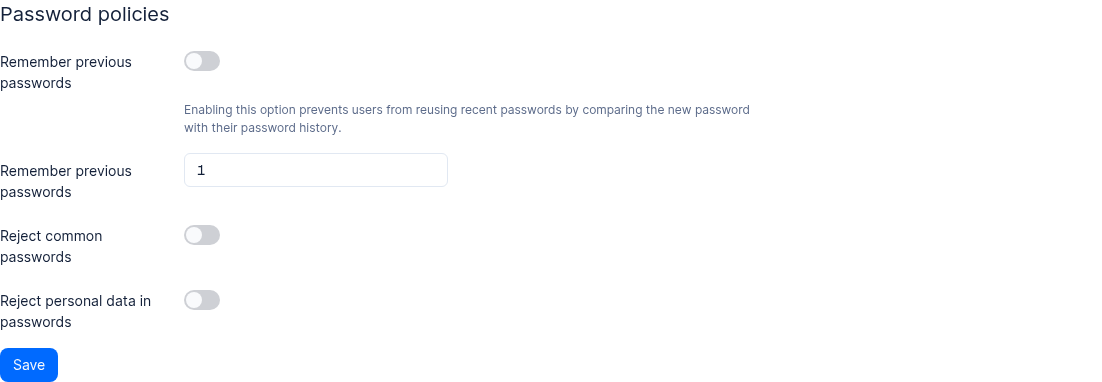
Figure: Password policy settings in a 2.12.0 test project. Choose policies appropriate to your security requirements.
1. Detailed Parameters and Recommended Configurations for the Seven Security Policy Cards
The table below summarizes each card's configuration fields, value ranges, system default behavior, and the recommended security baseline for production environments (such as enterprise-ai-hub-210):
| Card name | Configuration field | Value range and constraints | Recommended production baseline (enterprise-ai-hub-210) | Key behavior and activation timing |
|---|---|---|---|---|
| Users limit | Unlimited / Limited + quantity input box | Enable the unlimited switch, or turn it off and enter 1–10000 | For public ToC/ToB portals choose Unlimited; internal closed pilot projects can set Limited (e.g., 500) | In non-Console projects, an invitation by a non-privileged, non-app caller also checks the limit if it creates a user. Inviting an existing user, privileged or app callers, and the Console project are exempt from this invitation check. |
| Session length | Duration value + time unit dropdown | Choose days, hours, minutes, or seconds; the server limit is 31536000 seconds after conversion | For enterprise internal customer service agents, it is recommended to set 7 Days or 24 Hours; for highly sensitive admin consoles, 8 Hours is recommended | The console warns that shortening the duration may log out current users; verify existing session behavior in the target environment before changing it. |
| Sessions limit | Maximum number of active sessions per user | Integer, 1–100 | It is recommended to set 3 or 5 (allowing users to log in simultaneously from desktop browsers, mobile devices, and tablets); for strict single sign-on, set 1 | The check is triggered only on the user's next new login: if the number of active sessions has reached the limit, the system automatically logs out the user's earliest created session. |
| Password policies | Password history | Use the toggle to enable or disable it; when enabled, the server accepts a history count of 1–20, and API value 0 disables it | Enabled, with Limit set to 5 (prohibits reuse of the last 5 passwords) | The server securely stores historical password hash digests and compares them only when the user newly sets or changes a password; it does not affect login with existing passwords. |
| Password policies | Password dictionary | Boolean toggle (on / off) | Enabled | Rejects common weak passwords and frequently leaked passwords (such as password123, qwertyuiop, admin888). |
| Password policies | Disallow personal data | Boolean toggle (on / off) | Enabled | On applicable paths, checks the complete user ID, full email or email prefix, complete name, and complete phone number (with or without a plus sign); arbitrary fragments are not checked. Password operations do not all use the same validation path. |
| Session security | Session alerts | Boolean toggle (on / off) | Enabled (ensure the project's SMTP is properly configured) | When conditions are met, a reminder with device, IP, and country information is queued; delivery is not guaranteed. See the conditions below. |
| Session security | Invalidate (handle sessions on password change) | Boolean toggle (on / off) | Enabled | A self-service password change deletes other sessions only when the current session is identified and preserves that session; an administrator password change deletes all of the user's sessions; password recovery does not automatically delete sessions on that path. Explicitly revoke and verify sessions when all devices must be signed out. |
| Mock phone numbers | Mock phone number list (Phone number + Verification code) | Add up to 10 entries; phone number length 9–16 digits, fixed verification code of 6 digits | Configure only as needed during testing in a test environment or mobile app store review (e.g., +8619900000001 corresponds to verification code 123456); in production, clear the list or keep only a dedicated sandbox number | Paid/licensed capability: The cloud requires the corresponding plan; self-hosted requires enabling the license. Real SMS sending is skipped when logging in with a mock number. |
| Memberships privacy | Name / Email / MFA status three checkboxes | All checked by default (publicly displayed to fellow team members) | For external teams shared across enterprise customers (e.g., teams containing vip_guest), it is recommended to uncheck Email and MFA status, keeping only Name | Unchecking does not delete user data; it only masks the corresponding fields when the client queries the team member list, preventing information leakage between customers. |
Session alert conditions: With Session alerts enabled, an email/password login queues an alert only when the user session count is not 1. Token-based session creation additionally requires a user email and excludes Magic URL and email tokens. This checks the session count, not whether the device is new; the first session normally does not trigger an alert. A later session on the same device may trigger one. Delivery depends on the mail service and queue processing.
2. Multi-Factor Authentication (MFA) End-to-End Workflow Guide
Agentbase allows end users to self-bind and enable multi-factor authentication (MFA), supporting four verification factors:
TOTP authenticator app (Authenticator App): Compatible with standard TOTP apps such as Google Authenticator, Microsoft Authenticator, and 1Password (dynamic 6-digit codes, rotating every 30 seconds).
Email second-factor verification (Email MFA): Sends a one-time 6-digit verification code to the user's verified (
emailVerification = true) bound email address.Phone SMS second-factor verification (Phone MFA): Sends a one-time 6-digit SMS verification code to the user's verified (
phoneVerification = true) bound phone number.One-time recovery codes (Recovery Codes): A set of backup recovery codes generated when MFA is enabled, for emergency verification when the phone is lost or codes cannot be received.
Client-Side Integration Example for MFA Login and Challenge Verification (agentbase-web-sdk@2.12.0)
When a user (such as senior support specialist Li Na user_lina_002) has MFA enabled, the standard flow for frontend login and completing second-factor verification is as follows:
Before running, replace <APPBASE_ENDPOINT_WITH_V1> and <APPBASE_PROJECT_ID> with the confirmed target API endpoint and project ID. Until replaced, the SDK rejects the invalid endpoint before making a request.
import { Client, Account, AuthenticationFactor } from 'agentbase-web-sdk'; // Pin version @2.12.0

const client = new Client()
    .setEndpoint('<APPBASE_ENDPOINT_WITH_V1>')
    .setProject('<APPBASE_PROJECT_ID>');

const account = new Account(client);

async function signInWithMFA(email, password, chooseFactorFromUI, getCodeFromUI) {
    await account.createEmailPasswordSession(email, password);
    try {
        return await account.get();
    } catch (error) {
        if (error.type !== 'user_more_factors_required') throw error;
        const factors = await account.listMfaFactors();
        const available = [
            factors.totp && AuthenticationFactor.Totp,
            factors.email && AuthenticationFactor.Email,
            factors.phone && AuthenticationFactor.Phone,
            factors.recoveryCode && 'recoveryCode',
        ].filter(Boolean);
        if (available.length === 0) throw new Error('No MFA factor available');
        const factor = await chooseFactorFromUI(available);
        if (!available.includes(factor)) throw new Error('Invalid MFA factor selection');
        const challenge = await account.createMfaChallenge(factor);
        const code = await getCodeFromUI(factor);
        await account.updateMfaChallenge(challenge.$id, code);
        return await account.get();
    }
}
The current Web SDK enum value Recoverycode differs in case from the server recovery-code factor. This JavaScript example explicitly sends recoveryCode; if a TypeScript SDK type rejects it, check the SDK version or send recoveryCode through the REST API.
3. Steps to Configure Mock Phone Numbers
When performing automated E2E testing (such as verifying the SMS verification code login flow) or submitting demo accounts for app store review, frequently calling real SMS channels not only incurs costs but also easily triggers carrier rate limiting:
On the Auth → Security page, scroll down to the Mock phone numbers card.
Click the Add number button to add a new configuration row:
Phone number: Enter a 9–16 digit test-only virtual phone number (e.g.,
+8619900000001).Verification code: Enter a fixed 6-digit numeric verification code (e.g.,
654321).
Up to 10 mock number entries can be added; after filling them in, click the Update button at the bottom right of the card to save.
Test verification: First ensure the environment meets SMS configuration, permission and deployment-policy requirements; mock numbers do not bypass those checks. After they pass,
account.createPhoneToken(ID.unique(), '+8619900000001')with a matching mock number avoids real SMS delivery. Use the returned user ID and preset code withaccount.createSession(userId, '654321')to create a session.
FAQ and Troubleshooting
Q1: I changed Session length from 365 days to 1 day and changed Sessions limit from 10 to 1. Why haven't currently logged-in users been immediately logged out?
Root cause analysis: This is a smooth transition mechanism designed by Agentbase to prevent configuration changes from causing large-scale online avalanches:
Session length is used to calculate expiration timestamps when a session is newly created or renewed. After the duration is shortened, background cleanup may remove older sessions based on their creation time; saving the setting does not immediately sign out all sessions.
Sessions limit performs the concurrency check and oldest-session eviction only on the user's next new login.
Solution: If you need to immediately force all online devices of a specific user (e.g., a departed employee or an abnormal account) offline, go to Auth → Users, open that user's detail page, switch to the Sessions tab, and click Sign out all sessions in the upper-right corner (or click Block account on the user's Overview tab to block the account).
Q2: After enabling Password dictionary and Disallow personal data, can previously registered legacy users still log in with their old simple passwords?
Answer: Existing passwords are not automatically changed when new policies are enabled; login still depends on account status and other authentication requirements. User creation, self-service changes, administrator changes, and password recovery follow different validation paths, so do not assume every policy is enforced identically on each path. When replacing weak passwords, verify password policy enforcement and session revocation in the deployed environment.
Q3: A user enabled TOTP MFA, then switched to a new phone. They cannot generate the 6-digit dynamic code and did not save recovery codes. How can the account be unlocked?
Troubleshooting steps:
Log in to the Agentbase Console as an administrator and go to the project's Auth → Users.
Search for and click into the user's detail page (
/auth/user-{userId}).At the bottom of the Overview tab, locate the Multi-factor authentication card.
Click the Delete authenticator button to the right of
TOTP (One-time code)and confirm in the dialog (note: deleting the authenticator is irreversible). Alternatively, temporarily turn off the user's overall MFA toggle, and have the user re-bind the authenticator app on their new phone after logging in.
Related Documentation
Authentication overview (Auth Overview): Learn about the project's overall identity authentication architecture and credential types.
User management (Users): Centrally manage users' MFA status, force logout of active sessions, and ban accounts.
Team management (Teams): Learn about team member relationships and how they work with the Memberships privacy policy.
Email templates (Templates): Customize the Session alert (new session alert) and 2FA verification (MFA verification code) email content.