
Organizations and Account Center
In Agentbase's three-tier resource governance model of Account → Organization → Project, the Account Center provides unified management of a developer's personal identity, multi-factor authentication (MFA and one-time recovery codes), active sessions, account-level quota usage, pending-deletion project recovery (Restore), and table mode conversion records; the Organization Center serves as the top-level container for enterprise multi-project and multi-team collaboration, handling project creation, member invitations, six-level role authorization (RBAC), organization-level 30-day aggregated metering, and batch governance of inactive projects.
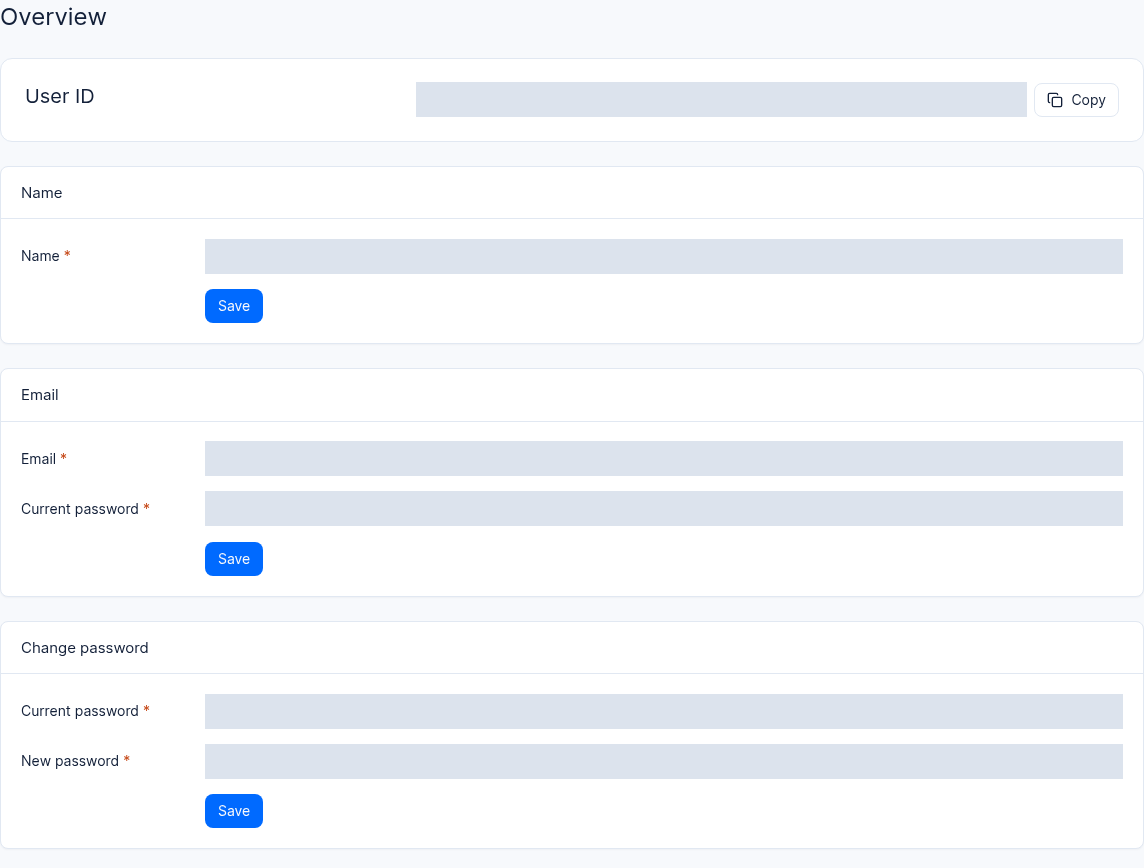
Interface reference: part of the test account center, with account information and input fields masked. No account changes were made.
Feature Overview
As enterprise AI application scale grows, an organization (e.g., Agentbase 企业智能中台, ID: 69c6d1aa00062e6bb60) often simultaneously runs an intelligent customer service production project (enterprise-ai-hub-210), an algorithm evaluation sandbox project, and sub-projects for various business lines. The Organization and Account Center solve the following four core governance problems for individual developers and team administrators:
High-security protection for personal accounts: Bind a TOTP authenticator app, verify email and phone factors, safeguard one-time recovery codes, and audit login device sessions (Sessions) to prevent high-privilege developer accounts from being compromised.
Multi-role team collaboration and least privilege: Six built-in organization roles —
Owner,Admin,Developer,Editor,Billing,Analyst— enable separation of duties (SoD) across R&D, operations, finance, and analytics personnel.Cross-tier cost and metering visibility: Standard usage aggregation over the last 30 UTC days is provided separately at the account level and the organization level (automatically excluding projects already in the deleted state), and is linked with the account-level quota/rate-limit views.
Inactive project lifecycle governance and accidental-deletion safeguard: Organization Owners can batch-scan and clean up zombie projects using a customizable "inactive days" threshold and "new project exemption days", while the Account Center provides a Restore (one-click recovery) safety buffer before physical cleanup.
| Governance dimension | Developer Account Center (/console/account) | Organization Management Center (/console/organization-{organization}) |
|---|---|---|
| Managing entity | Any logged-in Console developer themselves | Organization members (write operations require Owner or Admin; cleanup and organization deletion are limited to Owner) |
| Core security capabilities | Change password/email, enable MFA, bind 3 types of verification factors, generate one-time recovery codes, kick out abnormal device sessions | View all members' 2FA enablement status, control project read/write boundaries by role, manage organization custom domains |
| Project governance capabilities | View and Restore projects pending physical deletion, track project table mode conversion task history | Create new projects, batch-submit project cleanups by inactivity threshold (up to 50 per submission) |
| Usage and billing capabilities | Account-level 30-day UTC usage aggregation, read-only Rate limits / Quota limits views, cloud payment methods | Organization-level 30-day UTC usage aggregation (filtering deleted projects), cloud billing and invoices |
Core Concepts and Architecture
The diagram below shows the architectural relationships among the developer account, organization member roles, project lifecycle governance (especially the closed loop of organization-initiated cleanup → Account Center recovery before physical cleanup), and three-tier usage aggregation:
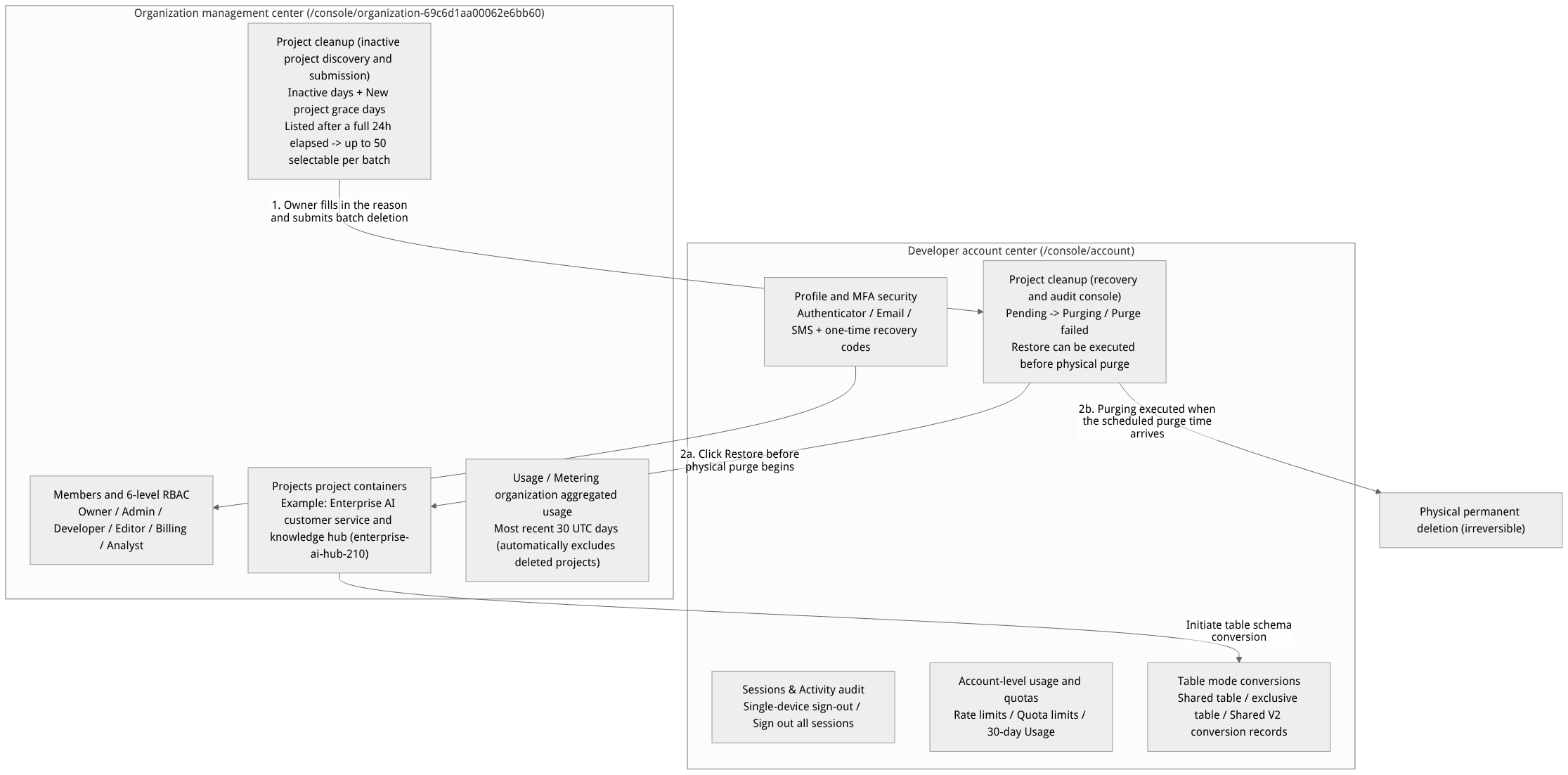
Flow diagram, not a runtime screenshot; read the relationships between steps or states along the arrows.
View the flow diagram in full size
Detailed Table of Organization Six-Level Role (RBAC) Permission Boundaries
When assigning roles to team members in Organization → Members, the role directly determines the member's operating permissions in the organization management console and in all Projects under the organization:
| Organization role | Organization settings and member invitations | Delete organization / inactive project cleanup | In-project resource read/write (DB / knowledge base / memory / gateway / functions) | High-risk project operations (column deletion toggle) | Billing, invoices, and usage observability |
|---|---|---|---|---|---|
| Owner | Allowed (rename organization, invite/remove members, change roles) | Allowed (the only organization role that can delete the organization and batch-clean inactive projects) | Full read/write (including creating/viewing/revoking API Keys) | Allowed (shares the column deletion toggle permission with platform administrators) | Full visibility and management |
| Admin | Allowed (rename organization, invite/remove members, change roles) | Not allowed (cannot delete the organization) | May create and revoke API Keys; plaintext is readable when active organization membership and project bindings pass validation | Not allowed | Full visibility |
| Developer | Read-only view of the member list | Not allowed | Has projects.read and projects.write; platform and key management require their respective permissions | Not allowed | Visibility depends on deployment and authorization |
| Editor | Read-only view of the member list | Not allowed | Allowed to read and write business data, knowledge base documents, lexicons, and configurations | Not allowed | Usage and observability visible |
| Billing (Finance specialist) | Read-only view of the member list | Not allowed | No projects.read by default; this role alone cannot enter a project in self-hosted deployments | Not allowed | Organization-level billing.read; availability depends on deployment |
| Analyst | Read-only view of the member list | Not allowed | No projects.read by default; this role alone cannot enter a project in self-hosted deployments | Not allowed | Organization and project visibility depend on granted permissions |
Roles, Entry Points, and Relationships
1. Account Center full tab route quick reference (prefix /console/account)
Click the Account entry on the right side of the Console's top navigation bar to enter the Account Center (as shown in Figure 1); the top contains the following sub-tabs:
| Tab name | Browser route path | Core content and operating permissions |
|---|---|---|
| Overview | /console/account | Change name, change email (requires current password verification), change password, manage external linked identities (Identities), configure MFA and one-time recovery codes, permanently delete the account |
| Sessions | /console/account/sessions | View the device browser, geographic location, and IP address of all active login sessions; supports individual sign-out or Sign out all sessions |
| Activity | /console/account/activity | View the current account's operation audit event stream in reverse chronological order |
| Organizations | /console/account/organizations | View cards of all organizations you belong to and the entry to create new organizations; under self-hosted deployment, you can manage organization member quotas (Member quotas) here |
| Payments | /console/account/payments | Maintain the payment methods bound to the account (shown only on cloud commercial deployments) |
| Rate limits / Quota limits | /console/account/rate-limits · .../quota-limits | Read-only view of the API request rate limits (Ratelimit) and resource quotas (Quota) applicable to the current account |
| Usage / Metering | /console/account/usage · .../metering | Trends and data integrity status of the account's four core metrics over the last 30 UTC days (storage, bandwidth, users, function executions) |
| Project cleanup | /console/account/project-cleanup | View the pending-deletion project list and the cleanup audit log; Restore can be performed before physical cleanup begins |
| Table mode conversions | /console/account/table-mode-conversions | View the progress and historical results of table storage mode (shared table / dedicated table / Shared V2) conversion tasks initiated by projects under the account |
2. Organization Center full tab route quick reference (prefix /console/organization-{organization})
Select the target organization in the top organization switcher (e.g., Agentbase 企业智能中台 69c6d1aa00062e6bb60) to switch between the organization governance modules via the top tabs:
| Tab name | Browser route path | Core content and operating permissions |
|---|---|---|
| Projects | /console/organization-{organization} | View the list of all projects under the organization and their regions; click Create project to create a new project |
| Members | /console/organization-{organization}/members | View the member list (including the 2FA status column), search by member ID or email, invite members, change roles, resend invitations, or remove members |
| Domains | /console/organization-{organization}/domains | Manage organization-level custom domains (shown on cloud deployments) |
| Usage / Metering | .../usage · .../metering | Organization-level usage aggregation over the last 30 UTC days (automatically filters out projects already in deleted state; projects pending deletion are not counted toward organization billing usage) |
| Billing / Invoices | .../billing · .../invoices · .../change-plan | View cloud billing details, download invoices, and change the organization subscription plan (shown on cloud deployments) |
| Project cleanup | /console/organization-{organization}/project-cleanup | Search for idle projects by days of inactivity and new-project grace days, bulk-select (up to 50 projects), fill in a reason, and submit deletion |
| Settings | /console/organization-{organization}/settings | Change the organization display name, view member quota cards, and perform the irreversible Delete organization |
Feature Details and Operation Guide
1. Configure multi-factor authentication (MFA) and one-time recovery codes for accounts
To secure production environments, it is strongly recommended that all members with write permissions in the organization (especially Owner, Admin, and Developer) enable MFA so that the 2FA column in the organization member list is fully compliant:
Go to Account → Overview (
/console/account, as shown in Figure 1), scroll down to the Multi-factor authentication card, and switch the main MFA toggle to the enabled state.Add authentication factors (three factors can coexist):
Authenticator app (recommended first choice): Click to add an authenticator app, scan the QR code displayed on screen with a TOTP authenticator on your phone (or manually copy and enter the secret string), then enter a dynamically generated 6-digit code to complete binding. Once bound, the
connectedbadge is displayed.Email factor: Enable the email verification code factor (requires that the current account's email has been verified, with the verified badge shown on the email card of the overview page).
SMS factor: Bind a phone number and verify the one-time SMS verification code.
To delete any bound factor, click delete and confirm in the confirmation dialog (note: once deleted, that method can no longer be used to pass the sign-in challenge).
Generate and safely store one-time recovery codes:
After enabling MFA, click generate Recovery codes on the card.
One-time display principle: In the recovery code generation dialog, the codes are shown in plaintext only once at creation. Immediately click to download the
.txtfile or copy them into your enterprise password vault for safekeeping.Usage and reset rules: If your phone is lost or you cannot receive verification codes, you can choose to sign in with a recovery code on the
/console/mfasign-in page; each recovery code can be used only once. If you suspect the codes have been leaked or exhausted, you can regenerate them on the Account page (requires passing an MFA challenge again); after regeneration, all old recovery codes are immediately invalidated.
2. Manage organization members, invite collaborators, and adjust roles
Go to the Members tab of the target organization (e.g.,
/console/organization-69c6d1aa00062e6bb60/members).Invite new members (Invite):
Click the Invite button in the upper-right corner and fill in the dialog:
Email (required): The invitee's email address.
Name (optional): The invitee's display name.
Role (required): Select from
Owner,Admin,Developer,Editor,Billing,Analystfollowing the principle of least privilege.
After submission, the member appears in the list with the status shown as
Pending(subject to the member quota limit of the current organization plan). On cloud deployments, for aPendingmember you can click the row-end menu⋮→ Resend to resend the invitation email.
Search, change roles, and remove members:
Use the search box above the list to quickly filter members by member ID or email keyword, and visually check each member's 2FA enablement status.
Click the action menu at the end of the member's row
⋮→ Edit role, adjust the role, and save; the new permissions take effect immediately in all associated project Console sessions.Click Remove to remove the member from the organization (if the target is the currently signed-in account itself, the menu shows Leave to voluntarily exit the organization).
3. Bulk cleanup of inactive projects (Project Cleanup) and restore of accidental deletions (Restore)
For test sandbox or abandoned prototype projects that accumulate over time in large enterprise organizations, Organization Owner can reclaim resources via a two-phase safe cleanup mechanism:
Phase One: Search for and submit inactive projects in the organization console (/console/organization-{organization}/project-cleanup)
As the organization
Owner, go to the organization's Project cleanup tab.Set the search threshold parameters and click Query:
| Search parameter name | Description | Misjudgment-prevention safety mechanism |
|---|---|---|
| Inactive days | The threshold of consecutive days a project has no valid business activity | 24-hour cooldown protection: after a project first reaches the inactive threshold, it must remain inactive for a full 24 hours before appearing in the cleanup results list, preventing occasional traffic dips from causing false judgments. |
| New project grace days | Protection grace days for newly created projects | New projects created within this number of days (even with no calls yet) will never be listed for cleanup. |
In the results list, select the projects to clean up (up to 50 projects per submission), fill in the required deletion reason (Reason) for audit purposes, and click submit.
After submission, the interface returns a detailed receipt for this bulk operation (explicitly showing the itemized counts of Accepted / Rejected / Skipped). Accepted projects enter the
Pending deletion(pending deletion) state and are immediately excluded from the organization's aggregated usage statistics.
Phase Two: Track cleanup status or perform restore of accidental deletions in the account console (/console/account/project-cleanup)
Go to the Account → Project cleanup tab in the top navigation; the page contains two views: Pending deletion and Audit log.
The list clearly shows each project's current status (
PendingPending cleanup /PurgingPhysical purge in progress /Purge failedCleanup failed), operator, deletion submission time, and scheduled purge time (Scheduled purge time).Emergency restore (Restore): While the project is still
Pending, click Restore and confirm, then check the result and project status. Verify critical resources, service notifications, and Agent Runtime bindings: a non-published binding removed during cleanup is not automatically recreated by restore, and notification delivery may still be pending.
4. Organization settings, cross-organization project migration, and deleting the organization
Cross-organization project migration: To transfer a project (e.g.,
enterprise-ai-hub-210) from the current organization to another organization you own, use the project's Settings → Overview → Change organization card.Delete organization (Delete organization): At the bottom of the organization's Settings tab, only
Ownercan delete the organization. The confirmation dialog lists all affected projects and members and requires manually typing the organization name as a second confirmation:Self-hosted environments: You must first remove, delete, or transfer out all associated projects under the organization before the empty organization container can be deleted.
Cloud environments: After confirming deletion, the organization and all of its projects and business data will be permanently destroyed; the operation is irreversible.
FAQ and Troubleshooting
Q1: After switching to a new phone with MFA enabled, the dynamic codes in my authenticator app are gone and I can't receive SMS. How do I sign in to the Console?
Cause and troubleshooting steps:
On the
/console/loginpage, enter your email and password, then proceed to the/console/mfasecond-factor verification page.Click to switch the verification method: preferably select the Email factor (a one-time verification code is sent to the registration email) or select Recovery code, then enter any previously saved unused recovery code to complete login.
After signing in successfully, immediately go to the
/console/accountMulti-factor authentication card, remove the oldAuthenticator appbinding, re-scan and bind with your new phone, and regenerate a new set of recovery codes for safekeeping (all old recovery codes are automatically invalidated).
Q2: Why can't I perform inactive project cleanup or delete the organization on the organization page even though my organization role is Admin?
Cause and troubleshooting steps: Per Agentbase's separation-of-duties security policy, the Admin role has permissions to modify day-to-day organization settings, invite/manage members, and read/write all resources within projects, but destructive organization-level governance operations (including deleting the entire organization Delete organization, bulk cleanup of inactive projects Project cleanup, and enabling the project-level database column deletion toggle Column deletion) are strictly reserved for the organization Owner (and platform-level administrators). To perform these operations, contact the organization Owner, or have the Owner elevate your role to Owner on the Members tab.
Q3: After selecting projects in Organization Project cleanup and submitting cleanup, why did the organization's Usage drop immediately, but the projects are still visible under Account's Project cleanup?
Cause and troubleshooting steps: This is expected platform behavior:
Once a project is submitted for cleanup and enters the
Pending deletion(pending deletion) state, the organization-level Usage / Metering aggregation view immediately and automatically filters out deleted-state projects, ensuring projects awaiting destruction no longer occupy the organization's effective usage view.The system retains a buffer window before physical purging. While the project remains pending, you can attempt a restore under Account → Project cleanup. Check the result and project status, and verify bindings and notifications as described above. The background task performs physical removal after the scheduled purge time.
Related Documentation
Organization machine identity keys
Current Owner/Admin members manage organization keys at Organization → Settings → API Keys. Developers can still create personal account keys. An organization key represents its organization and survives its creator leaving; current administrators must revoke it when needed. Deleting or recreating an organization does not transfer the old key to a new identity.
Save the one time full secret and use minimal permissions and expiration. Project API Keys read permission only exposes metadata; write permission permits project key issuance, updates and deletion. projects.write does not imply project key management. Issued project keys cannot outlive the issuing control plane key. Revoking that control plane key does not retroactively revoke already issued project keys.
Control plane keys support adapted project, database and storage operations. Direct Function/Site access currently covers listing, details and deletion. Deployment, execution and variables require a separately issued project key with appropriate scopes. Refresh after permission changes; the server independently validates every request.