
Unified AI Gateway
AI Gateway provides a unified entry point for model and tool requests. Gateway instances can manage tool access, policies, and credentials. Available controls depend on the deployment and account permissions.
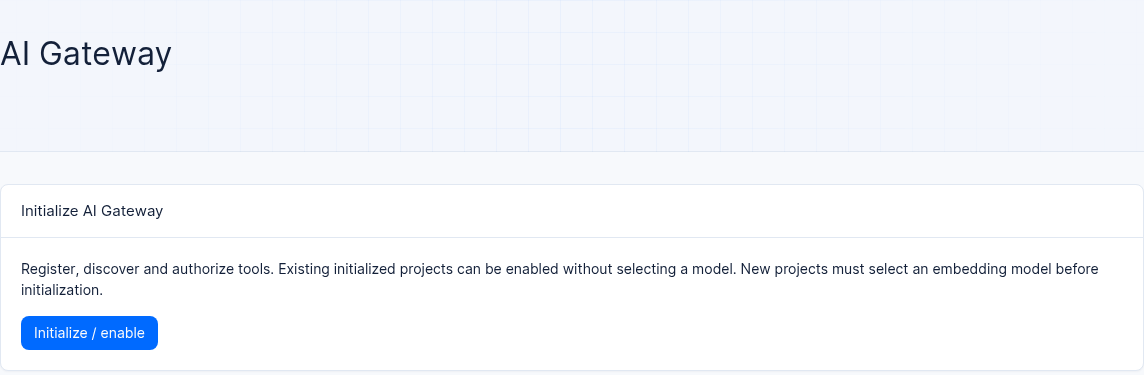
Interface reference: AI Gateway has not been initialized in this test project. A new project must first select an embedding model; an already initialized project can be re-enabled without selecting one.
Get started
Open AI Gateway in the project. If the entry is unavailable, check the project service setting and your account permissions.
Follow the page instructions to initialize the service and configure a model. Before making calls, check the selected provider and its credentials.
Configure gateways, tools, and credentials using the controls available in your deployment. Use the displayed gateway address and authorized credentials rather than copying an example ID from another project.
Use an OPA policy dry-run to inspect a policy decision. A dry-run does not prove that live requests were evaluated with the same policy; verify the published configuration with actual requests and logs.
v2.12.0 limitation: AI Gateway model inference, logical-model and model-deployment management, model discovery, and standard-model management are unavailable. Use Models (LLM Gateway) for model calls.
Security and cache boundaries
This version does not guarantee automatic redaction of model input, output, or tool results, or universal blocking of prompt injection. Remove sensitive data before sending or reporting it, and validate any additional protection for your application.
Semantic response caching is unavailable in this version. Do not rely on similarity thresholds, cache bypass headers, or purge operations to change a response.
Store credentials securely. Do not include real keys in screenshots, examples, or logs.
Troubleshooting
A call fails. What should I check? Verify that the request address, project, and gateway match, then inspect credential permissions, model configuration, and the provider's error. Do not reuse another environment's configuration or credentials without checking them.
How do I select an embedding model? Before initializing a new project, connect an embedding-capable model on the Models page and verify that it is available in the current environment.
Related documentation
AI Gateway endpoints in the API documentation