
Registration and Login
This chapter describes the complete flow for the Agentbase Console developer account (Console Account), including self-service registration, joining by invitation, multiple login methods (email & password / GitHub / enterprise SSO), the email verification guard, multi-factor authentication (MFA) secondary verification, password recovery, and first-login onboarding.
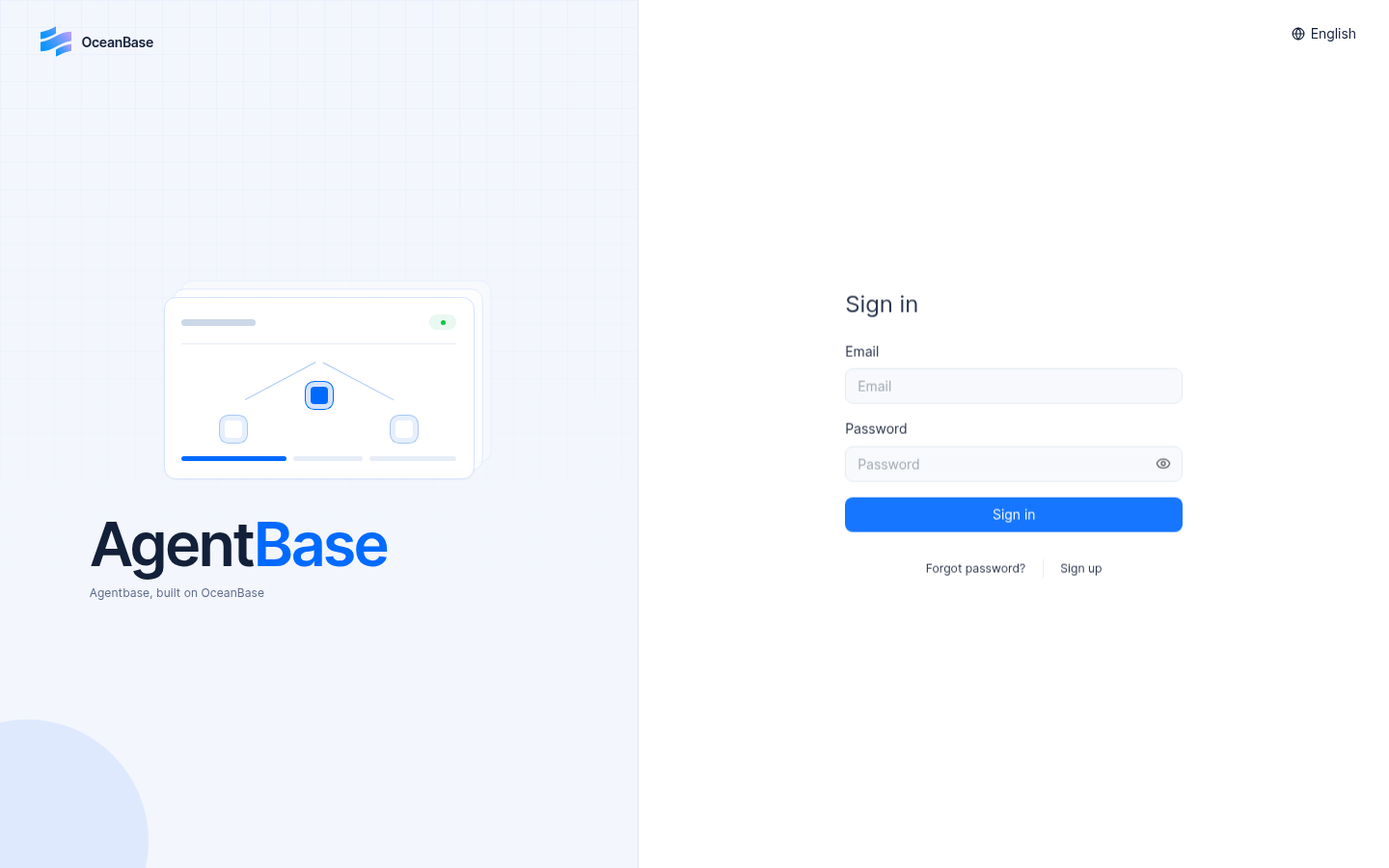
Figure 1: Console login page in version 2.12.0. Available sign-in methods depend on the environment configuration.
Feature Overview
In Agentbase, there are two completely independent identity systems, and team members using it for the first time must clearly distinguish between them:
Console developer account (Console Account, the subject of this chapter): intended for enterprise architects, R&D engineers, knowledge operations staff, and DevOps administrators. It logs in via
/console/loginand is used to create and manage organizations (Organization), projects (Project), API Keys, databases, knowledge bases, and the agent workbench.Project end-user account (Project Auth User): intended for end customers or support agents of a business application, such as an enterprise AI customer-service portal. It belongs to a specific project’s Auth module (see Authentication overview). These users sign in to the business frontend through the client SDK and cannot sign in to
/console/.
The Console registration and login module is designed around enterprise security and compliance requirements, with built-in unauthenticated redirect memory, a mandatory email verification guard, multi-factor MFA challenges (supporting authenticator apps, email, SMS, and one-time recovery codes), anti-enumeration password recovery, and a closed-loop invited registration flow.
| Core feature flows | Console route entry | Target users and trigger scenarios | Security and state assurance mechanisms |
|---|---|---|---|
| Account login (Sign in) | /console/login | Registered R&D, operations, and DevOps staff accessing the Console daily | Supports email & password, GitHub OAuth, and enterprise SAML/SSO; after successful login, automatically redirects back to the originally requested deep protected URL |
| Self-service registration (Sign up) | /console/register | New team leads or independent developers opening an account for the first time | Requires a password of at least 8 characters and mandatory consent to the privacy policy and terms of service; supports instance-level registration whitelist policy control |
| Invited registration and accepting an invitation | /console/invite · /console/register/invite/{slug} | Team collaboration members who receive an email invitation from an organization Owner/Admin | Binds the invitation token to the target organization role; upon completion, the member joins the target organization directly (e.g., Agentbase 企业智能中台) |
| MFA secondary identity verification | /console/mfa | High-privilege accounts with MFA enabled, after passing primary password verification | Supports dynamic switching among four factors: Authenticator TOTP, email verification code, SMS verification code, and one-time recovery code |
| Mandatory email verification guard | /console/verify-email | When the instance enforces email verification and the current account's email is not yet verified | Blocks all Console page access until the email verification link is confirmed |
| Password recovery (Recover) | /console/recover | Developers who forgot their login password and want to self-service reset it | Two-step email link reset flow; returns an identical prompt message for any entered email, preventing account enumeration attacks |
Core Concepts and Architecture
When a developer accesses any path of the Agentbase Console in a browser, the frontend route guard and the backend /v1/account/* session service jointly execute a rigorous multi-stage authentication and onboarding state machine.
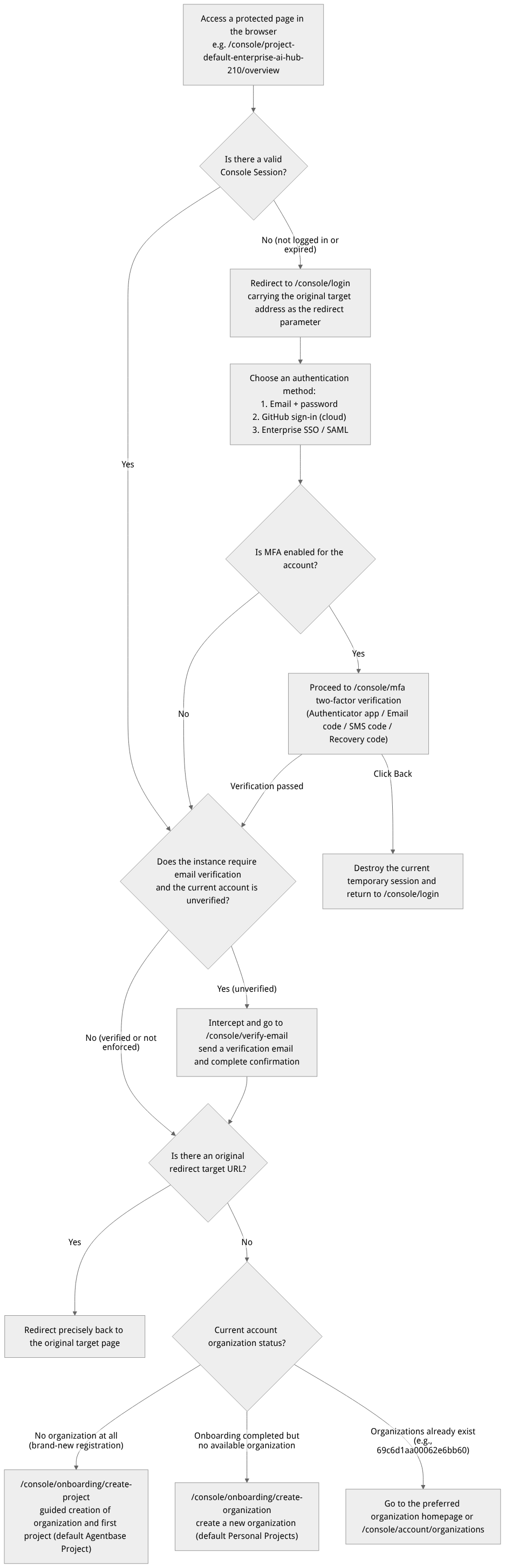
Flow diagram, not a runtime screenshot; read the relationships between steps or states along the arrows.
View the flow diagram in full size
Login Methods and Deployment Environment Comparison Table
| Login authentication method | Interface entry label | Deployment condition for availability | Use cases and credential management notes |
|---|---|---|---|
| Email & Password | Main area of the login form (Email / Password input fields + Sign in button) | Enabled by default in all environments | The basic authentication method; password changes and recovery are done in /console/account or /console/recover. |
| GitHub account login | Sign in with GitHub / Sign up with GitHub | Shown in cloud deployments or on instances configured with GitHub OAuth | After authorization, the external identity is automatically linked (it can be viewed or unlinked in Account → Overview → Identities). |
| Enterprise single sign-on (SSO / SAML) | Enterprise single sign-on / SAML login button | Automatically displayed when the instance-level environment variable enables the enterprise SSO toggle | Integrates with an enterprise internal IdP (identity provider), enabling one-click passwordless login with employee IDs and automatic access revocation upon departure. |
| Interface language switching | Language selector in the top-right corner of the login page | Built into all environments | Allows instant switching of the Console interface display language (e.g., Simplified Chinese / English) before login. |
Roles, Entry Points, and Relationships
1. Relationship between registration, invitations, and organization roles
New developers enter Agentbase mainly via two paths, and the path taken determines their initial organization and scope of permissions:
| Entry path | Trigger entry | Initial organization affiliation | Initial organization role | Subsequent available operations |
|---|---|---|---|---|
| Path A: Self-service registration | /console/register | The system onboarding automatically creates a personal default organization (e.g., Personal Projects) | Owner (organization owner) | Holds the highest privileges in the organization, can create any project (e.g., enterprise-ai-hub-210), invite other members, and configure all services. |
| Path B: Joining an existing enterprise organization by invitation | The invitation link in the email (/console/invite or /console/register/invite/{slug}) | Directly joins the inviter's enterprise organization (e.g., Agentbase 企业智能中台 69c6d1aa00062e6bb60) | Role specified by the inviter (Admin / Developer / Editor / Billing / Analyst) | Immediately accesses existing projects under that organization according to the granted role; the member's invitation status changes from Pending to activated. |
2. Isolation boundary from project Auth OAuth2 test sessions
When developing end-user login features within a project (see the /auth/test page in Authentication Overview), developers often need to test the project's OAuth2 login flow. Agentbase enforces strict physical isolation between the project OAuth test session and the developer's own Console login session: logging in or out as a project test user on the test page will never overwrite or log out your current Console developer account.
Feature Details and Operation Guide
1. Developer Account Login and MFA Secondary Verification Steps
Open the login page:
Access
https://appbuild.oceanbase.com/console/loginin a browser (as shown in Figure 1). If you need to switch the interface language, first click the language dropdown menu in the top-right corner of the page.
Submit primary authentication credentials:
Email & password login: enter your registered enterprise email in the
Emailfield, enter your password in thePasswordfield, and click Sign in.Enterprise SSO / GitHub login: if the current deployment has enterprise single sign-on or GitHub login enabled, directly click the corresponding SSO button below and follow the enterprise IdP instructions to complete the authorization redirect.
Complete MFA secondary identity verification (for accounts with MFA enabled):
After the primary password verification passes, the page automatically redirects to the
/console/mfachallenge page.The system by default first displays the bound primary authentication factor (e.g., Authenticator app). Open the authenticator app on your phone (such as Google Authenticator, Microsoft Authenticator, or 1Password), enter the current 6-digit dynamic numeric verification code, and submit.
Switch to an alternate verification factor: if your phone is not available, click the switch option on the challenge page and complete verification using Email one-time verification code, SMS verification code, or Recovery code (one-time recovery code) instead.
Note: on the
/console/mfapage, if you click Back, the system will, as a security protection measure, immediately destroy the current half-authenticated session and return to/console/login.
Post-login route dispatch:
If you were intercepted and redirected before login from a specific project link (e.g.,
/console/project-default-enterprise-ai-hub-210/knowledge-base), after successful verification you will return directly to that knowledge base page.If you logged in by directly accessing
/console/login, you will automatically enter the last-visited preferred organization page; if there is no preferred organization record, you will enter the organization list page of the Organizations and Account Center.
2. New Account Self-Service Registration and Invited Registration Flow
Method One: Self-service registration (/console/register)
Click Sign up at the bottom of the login page (or directly access
/console/register).Fill in the form as required:
| Form field | Required | Validation constraints and filling instructions |
|---|---|---|
| Name | Required | The developer's name as displayed in the organization member list and operation audit logs (e.g., 张工 - AI架构师). |
| Required | A valid email address used for login, receiving system alerts, password recovery, and organization invitations. | |
| Password | Required | Length must be at least 8 characters; a strong combination of uppercase and lowercase letters, numbers, and special symbols is recommended. |
| Terms checkbox | Mandatory | You must check the box to agree to the Privacy Policy and Terms of Use before submitting. |
Click Sign up to submit. If the current self-hosted instance has a registration email domain whitelist configured or open registration is disabled, non-whitelisted emails will receive a clear prompt; in that case, contact an organization administrator to join via the “invited registration” method described below.
Method Two: Join via team email invitation (/console/invite)
After an organization
OwnerorAdminsends an invitation to your email on the Organization → Members page, check the invitation email and click the dedicated acceptance link inside it.Developers who already have an account: enter the
/console/inviteconfirmation page, verify the organization name and assigned role, then click Accept to join the target organization immediately.New members without an account: enter the
/console/register/invite/{slug}dedicated registration page, set your name and a login password of at least 8 characters, then submit; the system will automatically complete account creation, log you in, and bind you to the target organization.
3. First-Login Onboarding and Email Verification
When a new account completes registration and enters the Console for the first time, the system automatically triggers the onboarding wizard based on the current account's organization affiliation status:
| Current account status | Triggered onboarding route | Default behavior and operation instructions of the onboarding page |
|---|---|---|
| Status A: No organizations at all (brand-new self-service registration) | /console/onboarding/create-project | The system automatically prepares a default organization container in the background, and the interface guides you to directly create the first project (default project name Agentbase Project, which can be changed to 企业智能客服与知识中台, and select a physical Region); after submission, you enter the new project console directly. |
| Status B: Completed early onboarding but currently has no available organization | /console/onboarding/create-organization | First enter the create-organization wizard (default organization name Personal Projects, with a customizable name); after creating the organization, you will be guided to create a project. |
| Status C: Instance enforces email verification and the account is unverified | /console/verify-email | Access to any Console page is forcibly routed to /console/verify-email; click resend verification email and click the confirmation link in your mailbox; after verification passes, all console features are automatically unlocked. |
4. Forgot Password and Secure Recovery (/console/recover)
Below the login form at
/console/login, click Forgot password? to go to the/console/recoverpassword recovery page.Enter the email address your account was registered with and click submit:
Anti-account-enumeration protection: regardless of whether the entered email is registered in the system, the UI returns an exactly identical success message, so attackers cannot probe the password recovery endpoint to discover whether a corporate email exists.
Open your mailbox and check for the password reset email (this depends on the instance's system SMTP service being correctly configured), click the time-limited recovery link in the email to return to the
/console/recoverreset form, enter the new password twice (at least 8 characters) to complete the update.
FAQ and Troubleshooting
Q1: After entering the correct username and password and clicking Sign in, there is no wrong-password error, yet the page instantly jumps back to /console/login?
Cause and troubleshooting steps: This is usually caused by the browser failing to save or send back the session cookie. Check in the following order:
Check the access protocol and reverse proxy configuration: in production or staging environments, the session cookie carries the
Secureattribute by default and must be accessed overhttps://; if an Nginx / SLB reverse proxy is in front, confirm the proxy correctly passes through theX-Forwarded-Proto: httpsrequest header and that the access domain matches the instance's configured_APP_DOMAIN.Check browser privacy blocking and clock skew: confirm the browser has not disabled cookies globally, and that the client system time is accurate (a large skew may cause short-lived credentials to be judged as expired immediately).
Check rate limiting (Ratelimit): if the same IP makes multiple consecutive failed login attempts in a short period, the platform's anti-brute-force login throttling may be triggered (HTTP
429); wait for the rate-limit window to reset and try again.
Q2: Why does a colleague's Console login page have an "Enterprise SSO (SSO / SAML)" or "GitHub login" button, while my environment's login page only shows the email/password fields?
Cause and troubleshooting steps: The third-party authentication buttons shown on the login page are driven entirely and dynamically by environment variable switches of the currently targeted deployment instance. GitHub login is typically enabled in cloud public deployments; enterprise SAML / SSO single sign-on requires a platform administrator to fill in the corporate IdP metadata in the instance deployment configuration and enable the corresponding SSO switch before it renders on /console/login.
Q3: What should I do if I don't receive the email verification, organization invitation, or password recovery emails?
Cause and troubleshooting steps:
First check your corporate mailbox's "Spam" or "Quarantine" folder and add the platform's sender address to the allowlist.
Be careful to distinguish platform-level SMTP from project-level custom SMTP: Console developer account registration verification, password recovery, and organization member invitations use the instance platform-level SMTP configuration (not the SMTP under a specific project
Settings → SMTPused by end-user Auth accounts). If no one in the team receives platform emails, contact the platform operations administrator to check the instance's_APP_SMTP_*environment variables and mail gateway connectivity.
Related Documentation
Account API keys and SMS protection
For personal automation, open avatar → Account → API Keys, enter a name, minimum permissions and expiration, and save the full secret immediately after creation. It cannot be recovered after closing the dialog. Existing keys support renaming, reduced permissions, shorter expiration and revocation. Extending expiration or changing the secret requires a replacement key. Write/delete selection is linked to the corresponding read permission; review the selection before saving.
An account key grants the intersection of current personal permissions and selected key scopes. It cannot elevate a role. Revoking it does not automatically revoke project keys it previously issued; handle those separately when retiring automation. Keep account keys in server scripts, outside public frontend configuration.
Phone code protection depends on deployment configuration. With enforce enabled, the default shared project/source IP quota is 20 attempts per minute. Project daily accounting uses Beijing time, warns at 200 and rejects after 300 by default; administrators can adjust these values. Honor Retry-After on 429, and contact an administrator when the daily quota is exhausted. Counters represent conservative sending allowances, not delivery or billing totals.